![corsmed_no_clear_space_@16x-1.png]](https://help.corsmed.com/hs-fs/hubfs/corsmed_no_clear_space_@16x-1.png?height=40&name=corsmed_no_clear_space_@16x-1.png)
Overview
Shoulder localizers use the Multiple Stacks option, with one stack per imaging plane:
- Axial
- Coronal
- Sagittal
This gives you 3 stacks in total, one for each plane.
How to work with shoulder localizers
- Enable multiple stacks
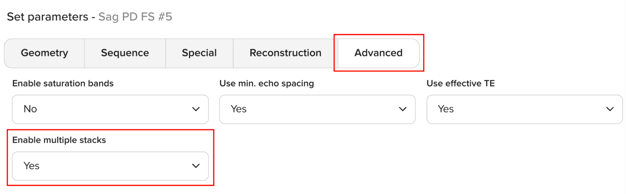
- Open the localizer sequence and go to the Advanced tab.
- Set Enable multiple stacks to Yes.
- Add more slice groups
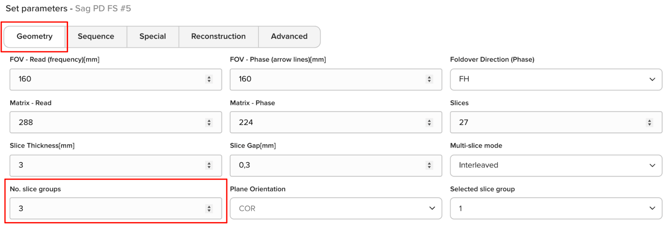
- Open the Geometry tab.
- Go to No. slice groups and increase this to as many slice groups as you need.
- Position the first slice group
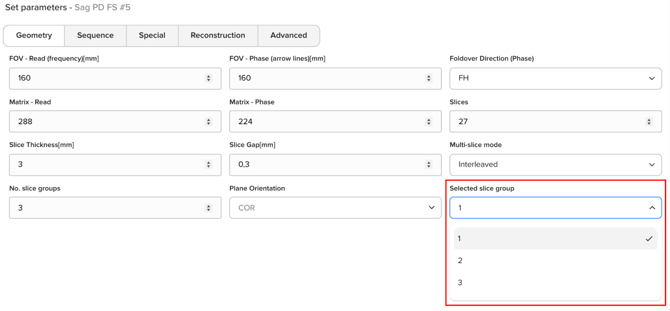
- An option called Selected slice group will now appear in the Geometry tab.
- This determines which slice group you can move in the viewports, where only one group can be moved at a time.
- Plan the selected slice group.
- An option called Selected slice group will now appear in the Geometry tab.
- Switch to the next slice group
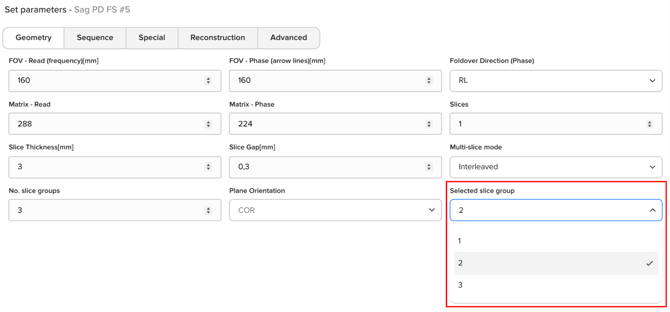
- Open the Geometry tab again.
- Change the Selected slice group to adjust a different imaging plane. This lets you move each slice group independently.
- Repeat for each plane
-
- Switch between slice groups and drag the scouts for each of the three planes (axial, coronal, sagittal).
Why does it work this way?
Each stack needs to be positioned individually because the simulator currently doesn't support multiple stacks sharing a center position that can be moved all together. Using one stack per plane is the recommended approach for localizers and scouts, and gives you full control over each imaging plane.