![corsmed_no_clear_space_@16x-1.png]](https://help.corsmed.com/hs-fs/hubfs/corsmed_no_clear_space_@16x-1.png?height=40&name=corsmed_no_clear_space_@16x-1.png)
Open display options
- In the simulator header of the Corsmed MRI Simulator, click Tools.
- Hover over Display Options.
- Review the available settings.
A display option is enabled when it appears blue with a checkmark next to it.
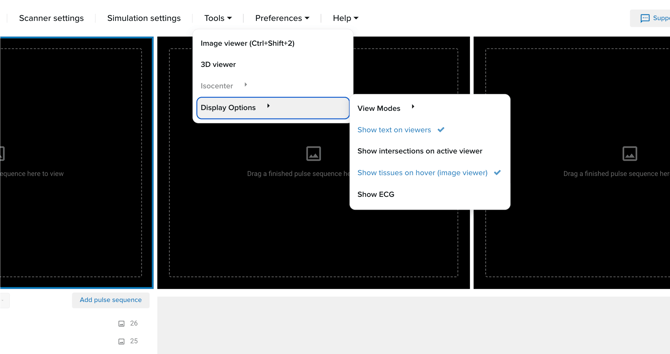
Choose your display settings
View mode
- Select one of the following layouts:
- Box view
- Slice view
Show text on viewers
Enable Show text on viewers to display information about finished sequences and images in the corners of the viewports.Show intersections on active viewer
Toggle Show intersections on active viewer to control visibility of intersection lines:- When enabled, blue intersection lines are shown on the active viewport.
- When disabled, these lines are hidden on the active viewport.
Show tissues on hover (Image Viewer)
- Enable Show tissues on hover to identify tissues when hovering over images in the Image Viewer.
- Move your mouse over an image to see which tissue you’re viewing.
Show ECG
Toggle Show ECG to display or hide the ECG signal during scanning.
Conclusion
You've learned how to change display options, and customize how information and images are shown in the Corsmed MRI Simulator.