![corsmed_no_clear_space_@16x-1.png]](https://help.corsmed.com/hs-fs/hubfs/corsmed_no_clear_space_@16x-1.png?height=40&name=corsmed_no_clear_space_@16x-1.png)
Add a content block to a module
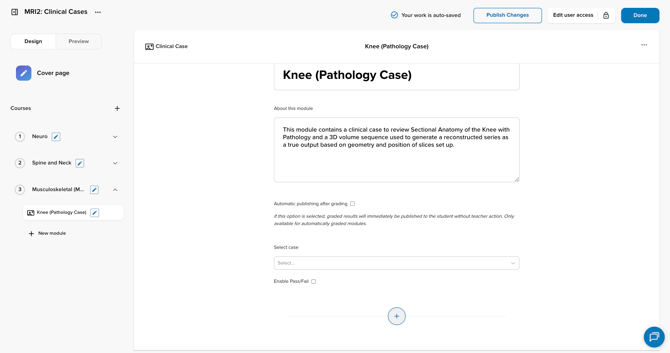
- Open the module where you want to add content.
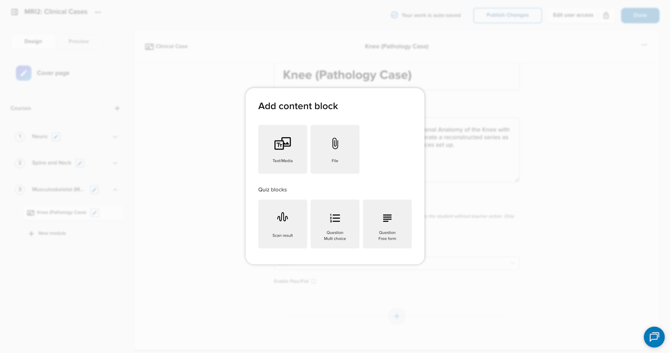
- Click the + sign to add content.
- Choose one of the available content block types:
- Text / Media
- File
- Quiz block
- Scan result
- Question (multiple choice)
- Question (free form)
Rich text editor options
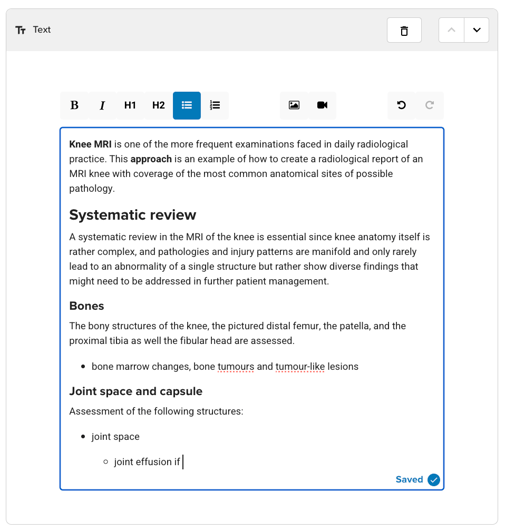
All content blocks include a rich text editor, so you can:
- Add headings.
- Create bullet and numbered lists.
- Format text with bold and italic.
- Add images.
- Supported file types: PNG, JPG, JPEG.
- Add video.
- Paste a video URL or embed code from YouTube, Loom, Vimeo, or Google Drive.
Content block types
Text / Media
Use this when you want to explain, instruct, or provide learning content for learners to read or watch.
What it’s for:
- Writing explanations of concepts
- Adding examples, background, or theory
- Structuring content into readable sections
How to create a Text / Media block
- Click the + sign in your module.
- Select Text / Media.
- Start writing your content in the editor.
- Use headings, lists, images, and video to structure the content.
- Add a new Text / Media block for each section of content you want to keep separate.
File
Use this when you want to attach a file for learners to download or open.
What it’s for:
- Sharing articles, worksheets, or handouts
- Uploading supporting documents or spreadsheets
How to create a File block
- Click the + sign in your module.
- Select File.
- Upload a file from your computer.
- Supported file types: doc, docx, pdf, xls, xlsx.
Quiz block types
Quiz blocks let you assess learners and, in many cases, auto-grade their work.
Available quiz block types:
- Scan result
- Question (multiple choice)
- Question (free form)
Scan result block
What it is:
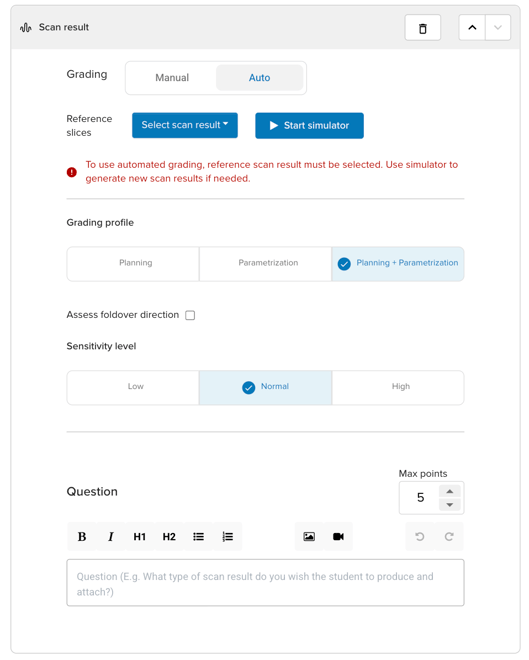
The Scan result block lets learners respond by submitting images they have created in the Corsmed MRI Simulator.
When learners submit their sequence, you can view:
- The resulting image stack
- The parameters and slice positions they used
How to create a Scan result block
- Click the + sign in your module.
- Select Scan result under Quiz blocks.
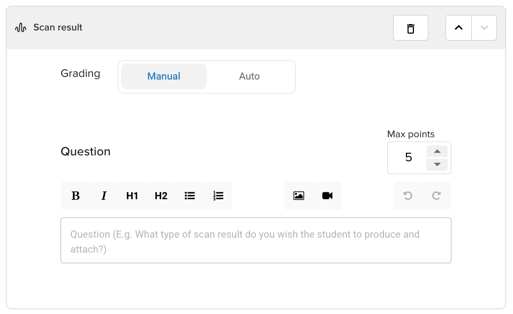
- Choose the grading type:
- Manual: you or another instructor review and grade the submission.
- Auto: the system grades using a reference image.
- Enter the Max points for this scan result.
- Enter the question or instructions for learners in the rich text editor.
If you choose automatic grading:
- Select a reference scan result:
- Click Select scan result to choose an existing one, or
- Click Start simulator to generate a new scan result.
- Choose the grading profile:
- Planning
- Parameterization
- Planning + Parameterization
- Enable Assess foldover direction by checking the box (optional).
- Choose the sensitivity level:
- Low
- Normal
- High
This controls how much learners can deviate from the reference image and still receive full score.
Multi choice question block
What it is:
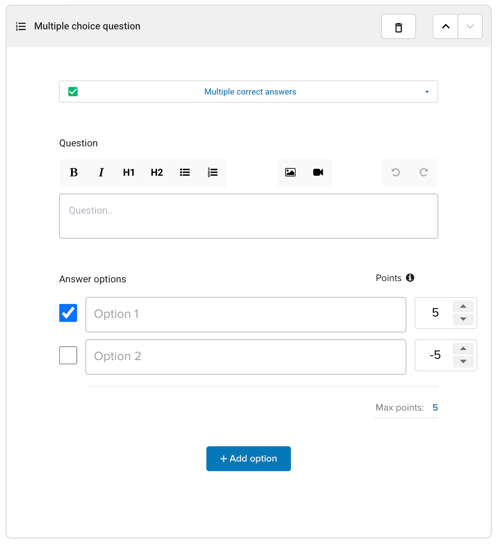
The Multiple Choice question block lets learners answer by choosing from predefined options. It can be single-select or multi-select, and it supports auto-grading.
- Single-select: learners can select one option.
- Multi-select: learners can select one or more options, and you can define multiple correct answers.
- You assign points per option, including negative points for incorrect answers.
If auto-grading is used, learners receive their result immediately after submitting the module.
How to create a Multi choice question
- Click the + sign in your module.
- Select Question (multiple choice) under Quiz blocks.
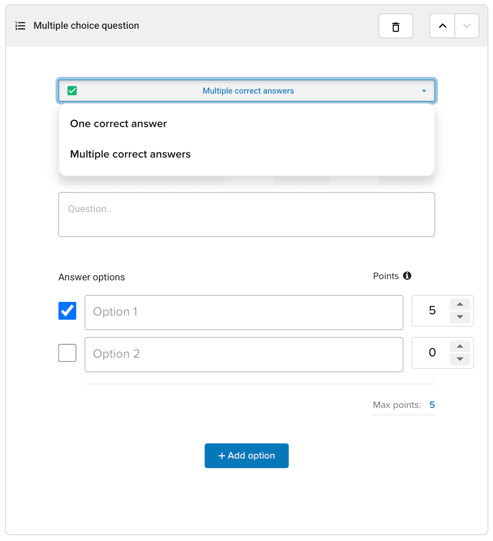
- Decide on the answer type in the dropdown menu:
- Select Single correct answer if only one option should be correct.
- Select Multiple correct answers if more than one option can be correct.
- Enter the question in the rich text editor.
- Enter the answer options learners can choose from.
- Assign points to each answer option:
- You can assign different points per option.
- You can use negative points for incorrect answers so learners can’t simply select all options to get full points.
- The minimum total score for the question is 0, so learners won’t get a negative score even if all chosen answers are wrong.
Free form question block
What it is:
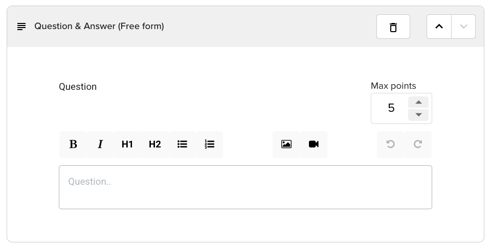
The Free Form question block lets learners answer in their own words, similar to an essay question.
- Learners can provide detailed, open-ended responses.
- You can use this to encourage deeper reflection and reasoning.
How to create a Free form block
- Click the + sign in your module.
- Select Question (free form) under Quiz blocks.
- Enter the question or prompt in the rich text editor.
- Enter the max points that can be awarded for a correct or excellent answer.
Conclusion
You've learned how to add content blocks to a module and choose the right type based on how you want learners to interact with the material.