![corsmed_no_clear_space_@16x-1.png]](https://help.corsmed.com/hs-fs/hubfs/corsmed_no_clear_space_@16x-1.png?height=40&name=corsmed_no_clear_space_@16x-1.png)
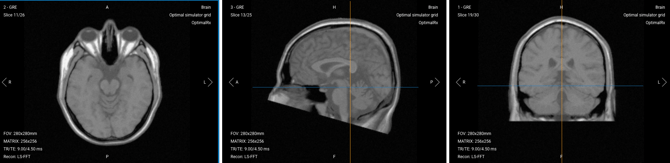
Scroll through image stacks
- Click the left (<) or right (>) arrows or use the mouse wheel to scroll through the slices.
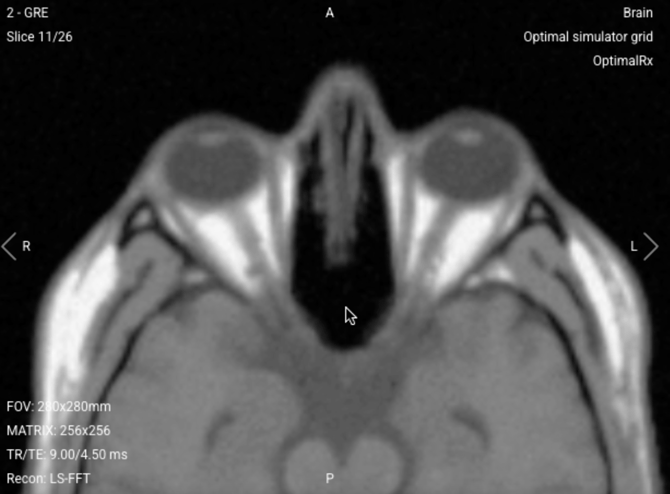
Zoom in and out
Zooming allows you to magnify areas of interest for closer inspection.
- Hold down the Control key.
- Scroll your mouse wheel up or down to zoom in or out (or use your trackpad).
- Double-click with the left mouse button to return to the original view if needed.
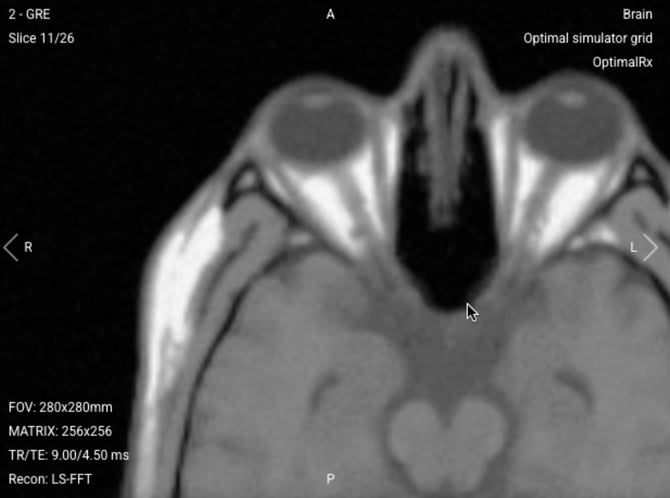
Pan the image
Panning lets you move the image within the viewport while maintaining the current zoom level.
- Hold Control + left click and drag the image.
- Double-click with the left mouse button to return to the original position.
Adjust window levels (brightness and contrast)
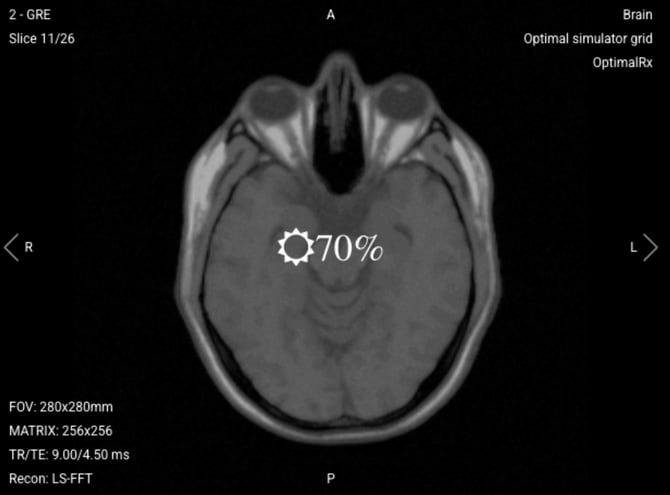
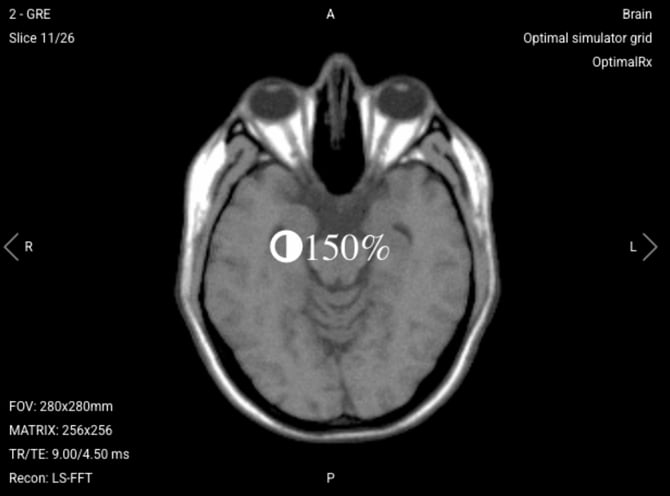
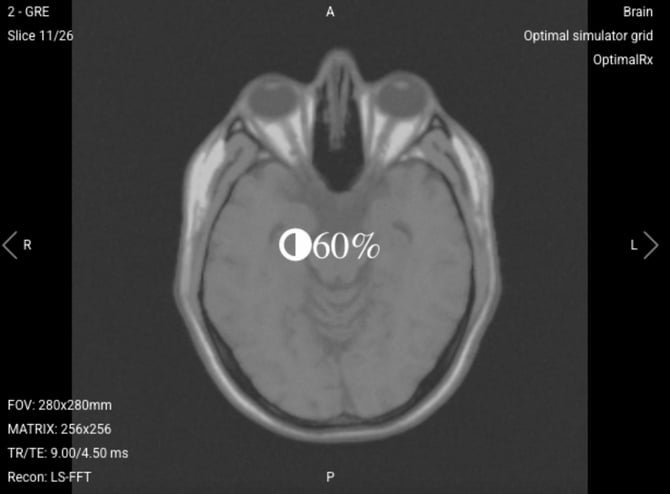
Windowing controls allow you to adjust how image intensities are displayed, helping you better visualize anatomical structures and tissue contrast.
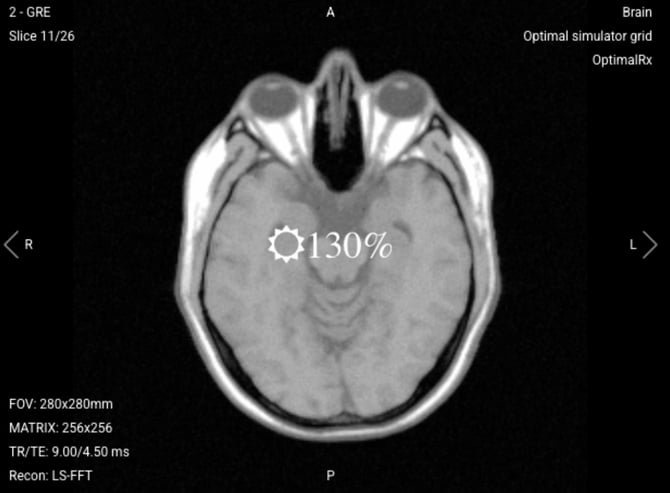
Adjust brightness
-
Increase brightness:
Windows:
Control + Alt + Up ArrowMac:
Control + Option + Up Arrow
-
Decrease brightness:
Windows:
Control + Alt + Down ArrowMac:
Control + Option + Down Arrow
Adjust contrast
-
Increase contrast:
Windows:Control + Alt + Right ArrowMac:
Control + Option + Right Arrow
-
Decrease contrast:
Windows:Control + Alt + Left ArrowMac:
Control + Option + Left Arrow
Alternative method: Hold Control + Right-click and drag the mouse to adjust brightness and contrast interactively.
Reset window levels
To return to the default display settings:
-
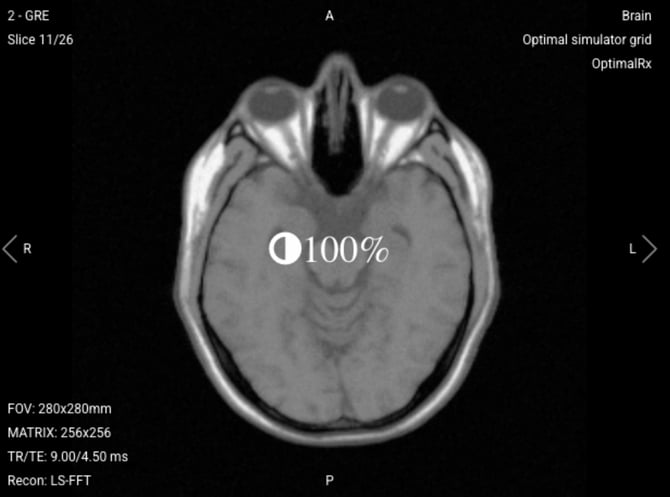
Reset window level to 100%:
Windows:Control + Alt + RMac:
Control + Option + R
This is useful if adjustments become too strong or if you want a standardized view again.
Independent viewport control
Each viewport can be adjusted independently. This allows you to:
- Compare different planes or sequences
- Focus on multiple anatomical regions simultaneously
- Adjust one image without affecting the others
Conclusion
You’ve learned how to interact with MR images in the Corsmed MRI Simulator using windowing, zooming, and panning. This gives you full control over image visualization during analysis and learning.