![corsmed_no_clear_space_@16x-1.png]](https://help.corsmed.com/hs-fs/hubfs/corsmed_no_clear_space_@16x-1.png?height=40&name=corsmed_no_clear_space_@16x-1.png)
Overview
The Pulse Sequences List in the Corsmed MRI Simulator mirrors the behavior and flexibility of a real MRI console. It allows you to organize, duplicate, customize, and efficiently plan sequences while experimenting safely within a single simulation session.
All users can use these core functions, but the available saving locations vary by subscription level.
Right-click actions on a pulse sequence
By right-clicking on any sequence in the Pulse Sequences list, you can access the options below.
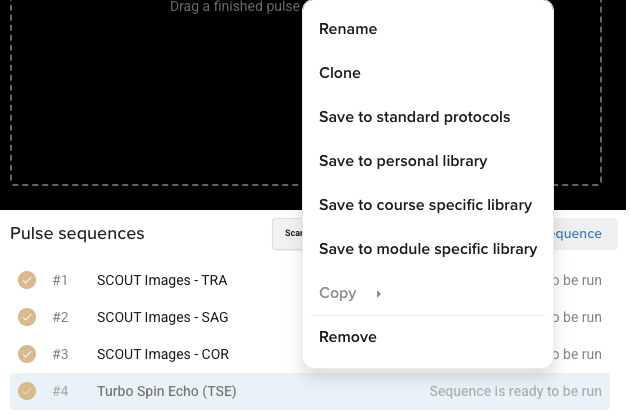
Rename
Assign a custom name to any pulse sequence.
This is useful for labeling sequences by contrast, anatomy, protocol step, or experiment version.
Clone
Creates an exact duplicate of the selected sequence and places it at the bottom of the Pulse Sequences List.
This is ideal for testing parameter variations while preserving the original configuration.
Save
Save pulse sequences to available libraries or locations.
The list of save destinations depends on your subscription type.
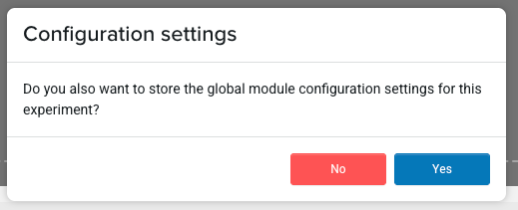
Choose what to save
When you save a sequence, you’ll see a configuration window with the question:
Do you want to store the global module configuration settings for this experiment?
- Select Yes to save the sequence with anatomical model–specific planning and settings.
- Select No to save only the parameter configuration.
Add with position vs. Add without position
When adding or saving a sequence, you can choose whether to include planning information.
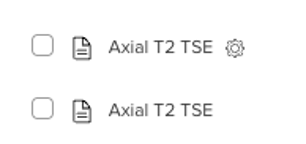
Add with position:
- Saves planning data (position, coverage, angulation).
- Saves the full parameter configuration.
- Sequences saved with position show a gear icon next to them.
Add without position:
- Saves parameters only.
- Lets you plan positioning from scratch.
- Sequences saved without position do not show the gear icon, and the Add with position option will be disabled.
Copy
The Copy function allows you to propagate planning and geometry information from one sequence to another, ensuring consistency across protocols.
- Set up a pulse sequence with the planning and geometry you want to reuse.
- Click Save on the sequence.
- Confirm the sequence shows a gold circle next to its name (this means it’s saved and can be copied from).
- Right-click on the sequence.
- Select Copy.
- Choose how you want to copy:
- All slices
- Slice number
- Center slice
- Custom
- Click Save in the Parameter Tabs when you’re done.
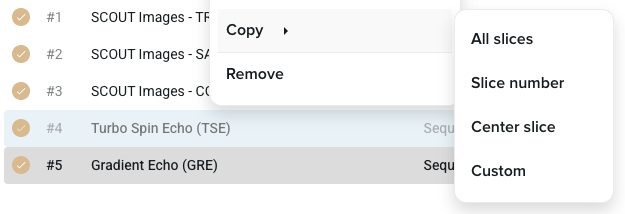
Available copy modes
All slices
Copies all Geometry tab parameters, including:
- Slice positioning
- Angulation
- Orientation
- Coverage
This is the most comprehensive copy option.
Slice number
Copies only the number of slices and slice angulation, while keeping all other geometry parameters unchanged.
Useful when standardizing coverage without altering FOV or resolution.
Center slice
Copies only the central slice position from one sequence to another.
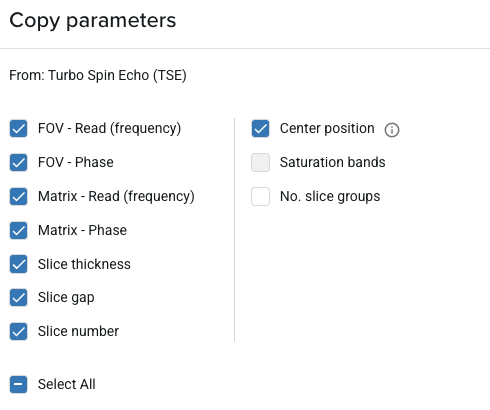
Custom
Allows you to selectively copy specific geometry parameters.
When selected, the following list becomes available:
Remove
Removes the selected sequence from the Pulse Sequences section only.
- If the sequence has already been run, its results are safely stored and remain accessible in the Scan Results section
- For safety and traceability, run sequences cannot be permanently deleted
- Sequences that have not been run can be permanently removed
Conclusion
You've learned the core functions in the Pulse Sequences List, including how to copy slice parameters depending on what you want to keep or recalculate.