![corsmed_no_clear_space_@16x-1.png]](https://help.corsmed.com/hs-fs/hubfs/corsmed_no_clear_space_@16x-1.png?height=40&name=corsmed_no_clear_space_@16x-1.png)
Enter the Corsmed MRI Simulator
You can start the simulator in two ways:
From the dashboard
- Select an anatomical model.
- Click Start simulator.
From a module
- Open the module you’re working on.
- Click Start simulator.
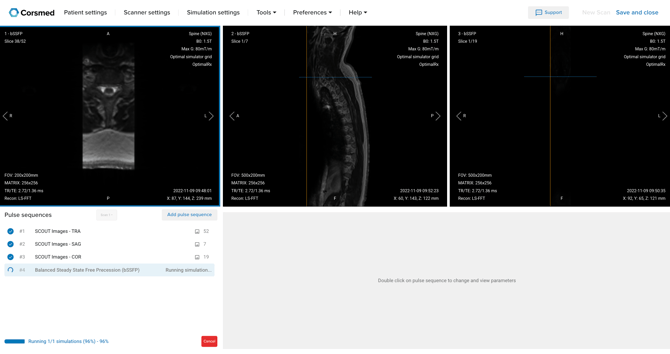
Get started with scout sequences
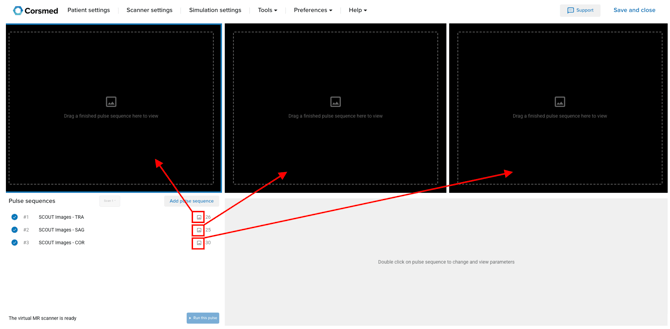
- Click in Pulse Sequence List to add scout sequences.
- Use the three available scout sequences:
- TRA: Transverse / Axial
- SAG: Sagittal
- COR: Coronal
- Click Run all to run the scout sequences.
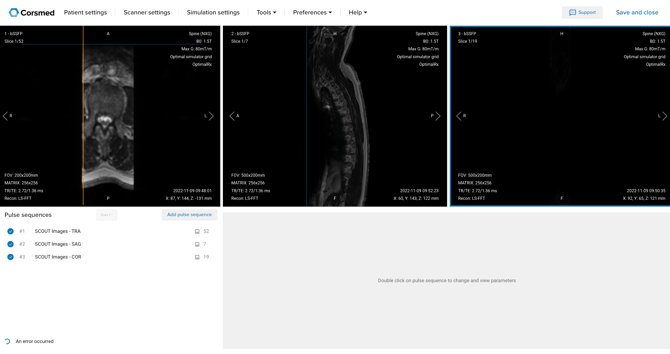
- Having Run all, if you decide to change the scout images they will update automatically and there is no Run all button anymore.
- When they finish, drag each image icon into a viewport to display the results.
Browse available pulse sequences
- Click Add Pulse Sequence at the top of the Pulse Sequence List.
- Explore pulse sequences using the available tabs:
- Standard Sequences
- Standard Protocols
- Personal Library
- Course Specific Library
- Module Specific Library
Add a pulse sequence to your scan
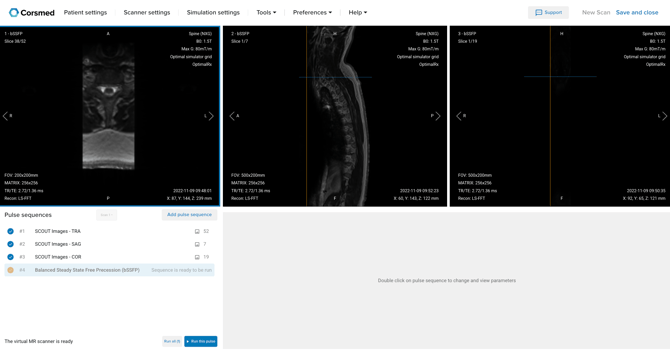
- Click the pulse sequence you want to use.
- Click Add next to the sequence description.
- Review the confirmation pop-up that the sequence was added successfully.
- Add more pulse sequences if you want.
- Click the X in the top-right corner to close the panel when you’re done.
Adjust pulse sequence parameters
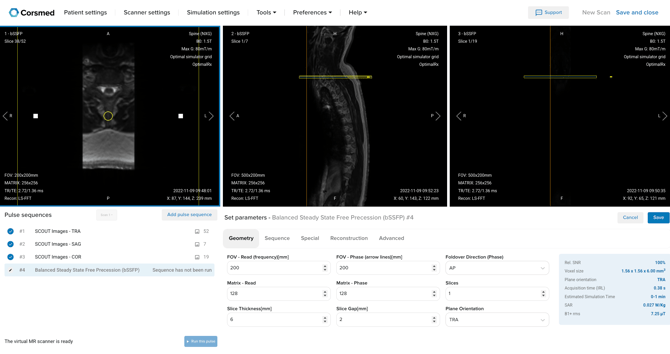
- Double-click a pulse sequence in the Pulse Sequence List to open it.
- Use the Parameter Tabs to adjust the parameters you want in any of the five tabs:
- Geometry
- Sequence
- Special
- Reconstruction
- Advanced
- Watch the Blue Indicator Box in the Parameter Tabs to see how changes affect the workflow and resulting MR image.
- Click Save in the top-right corner of the Parameter Tabs.
- Click Run this pulse to start the scan.
- Track progress using the progress bar shown in the Pulse Sequence List.
Analyze your MR images
- Change the name of your MR image to reflect the pulse sequence and parameters used.
- Drag the MR image icon into a viewport.
- Review and analyze your results.

Conclusion
You've learned how to complete a scan in the Corsmed MRI Simulator, from entering the simulator to running sequences and analyzing your MR images.