![corsmed_no_clear_space_@16x-1.png]](https://help.corsmed.com/hs-fs/hubfs/corsmed_no_clear_space_@16x-1.png?height=40&name=corsmed_no_clear_space_@16x-1.png)
Create a new program
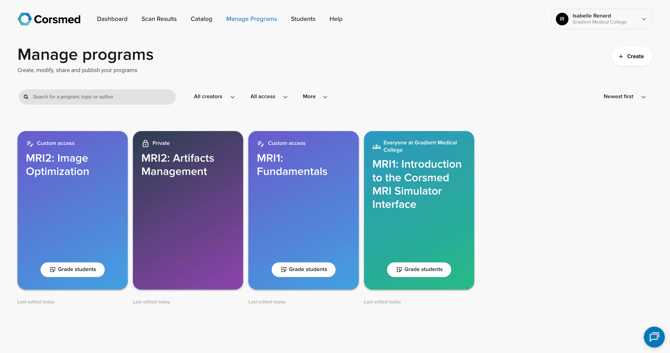
- Go to Manage Programs and click Create in the top-right corner.
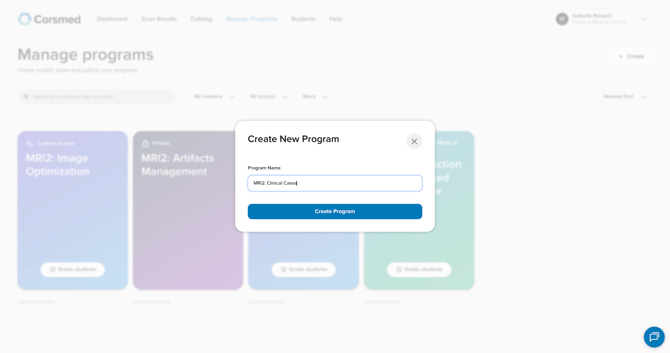
- Enter a name for your program.
- Don’t worry about getting it perfect, you can rename the program later.
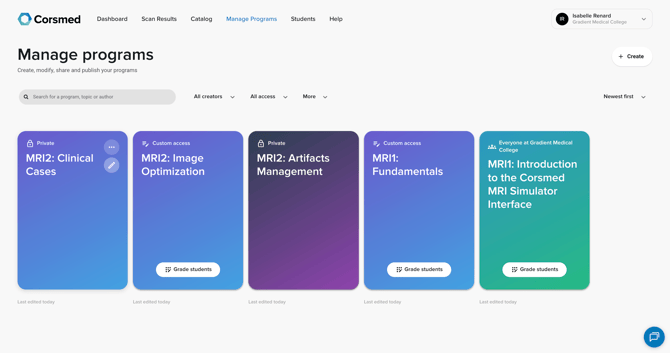
- The program is created as Private by default.
Open the program editor
- After the program appears in your list, click the pen icon to open it.
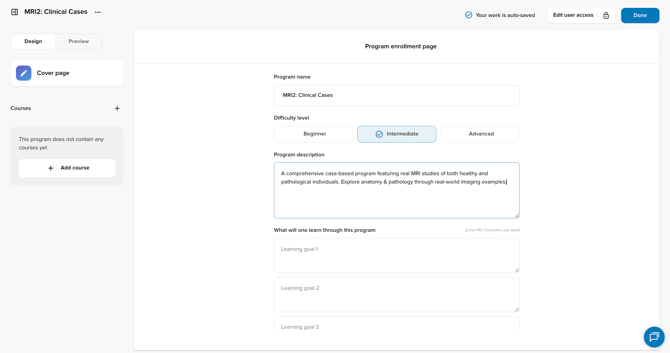
- When you open your new program for the first time, you’ll land on the Program Enrollment page. Fill in:
- Difficulty level
- Program description
- Learning goals (you can add up to four)
Navigate the program editor
Design and preview
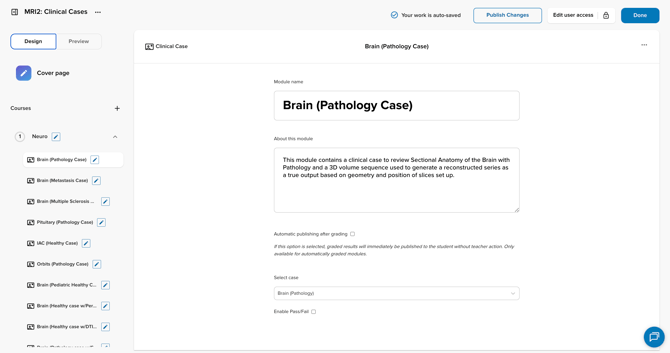
- Use the Design tab to build your program content.
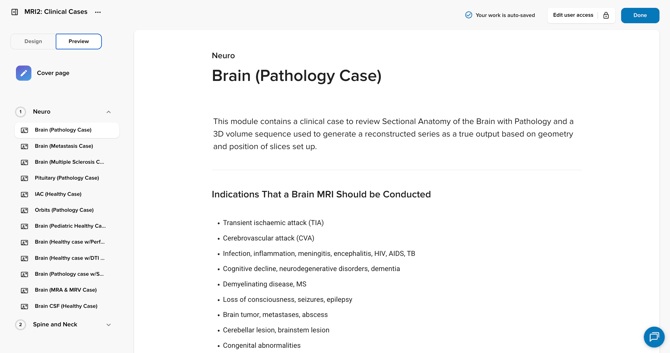
- Switch to Preview anytime to see how it will appear for your learners.
Edit user access
- Click Edit user access in the top-right corner.
- Choose one of the following access levels:
- Private
- Everyone in your organization
- Advanced access
- Click Save.
- For detailed guidance, see Edit User Access.

Auto-save and publish options
- Your work is auto-saved as you make changes.
- Click Publish Changes to make updates immediately visible to your learners.
- Click Done to exit the Program Editor.
Conclusion
You've created a new program, explored the Program Editor, and learned how to adjust key settings.