![corsmed_no_clear_space_@16x-1.png]](https://help.corsmed.com/hs-fs/hubfs/corsmed_no_clear_space_@16x-1.png?height=40&name=corsmed_no_clear_space_@16x-1.png)
Give grade and feedback
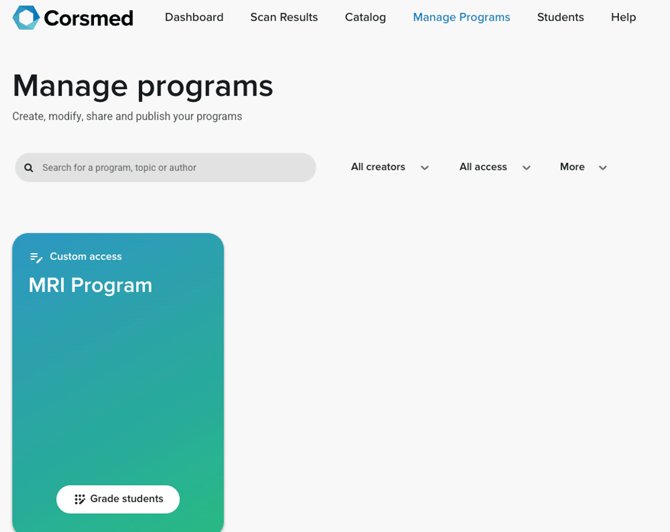
- Go to Manage Programs.
- Find the program you want to grade and click Grade students.
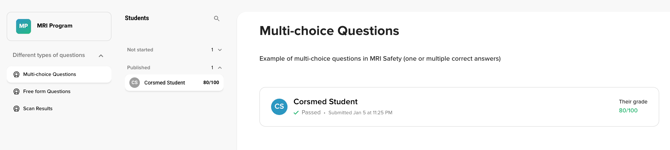
- Select the module you want to grade.
- Select a learner to review their submission.
Understand learner status
You’ll see one of these statuses next to each learner:
- Not started: The learner hasn’t opened the module yet.
- Not submitted: The learner started but hasn’t submitted.
- Submitted: The learner submitted and is waiting for grading (manual grading module).
- Published: The module is automatically graded and published (automatic grading module).
- Graded: You manually graded and published the result.
Automatically graded modules
When automatic grading is enabled, scores are automatically calculated without instructor action required.
To view a learner’s score:
- Open the learner’s submission.
- Review the score and breakdown.
- Add written feedback (optional).

Manually graded modules
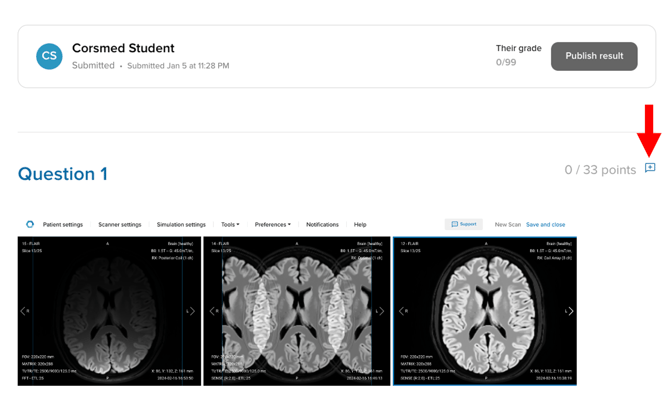
- Open the learner’s submission.
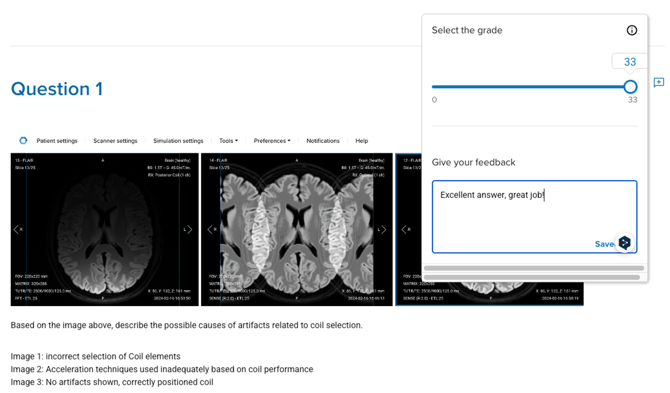
- Assign points for each question using the blue + icon and the slider.
- Add written feedback (optional).
- Click Publish result.
After you publish, the status updates to Graded, and the learner can view their score, breakdown, and feedback.

Learner view
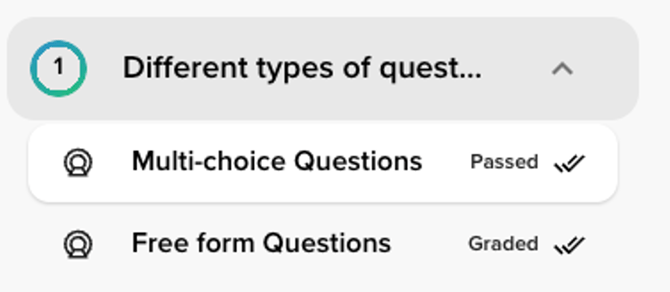
From the learner’s perspective, each module displays a clear grading status:
- Graded
- Passed
- Failed
Note on re-submissions
For modules marked as Failed, you can choose to allow or restrict whether a learner can submit again. This option is defined during module creation.
Conclusion
You’ve learned how to open the grading view, interpret learner statuses, and publish grades and feedback for both automatic and manual grading.