![corsmed_no_clear_space_@16x-1.png]](https://help.corsmed.com/hs-fs/hubfs/corsmed_no_clear_space_@16x-1.png?height=40&name=corsmed_no_clear_space_@16x-1.png)
Access the course or module specific library
- Open the Corsmed MRI Simulator.
- Click Add Pulse Sequence.
- Select Course Specific Library or Module Specific Library.
Purpose of these libraries
The Course Specific and Module Specific Libraries let you build goal-oriented simulation experiences that align with your teaching objectives. You can use them to:
- Provide ready-to-use sequences learners can select and work with.
- Create tailored protocols that match your curriculum, clinical workflow, or learning outcomes.
- Decide whether sequences should include:
- Predefined slice planning (position, coverage, angulation), or
- No planning, so learners plan scans from scratch.
- Standardize learning while still encouraging exploration and problem-solving.
Course specific vs module specific
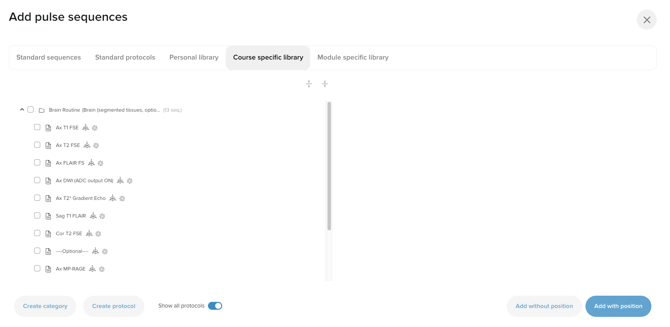
Course specific library
- Content is available across all modules in the course.
- Best for core protocols or standardized workflows you want learners to use throughout the course.
Module specific library
- Content is available only inside a single module.
- Best for focused objectives, assessments, or advanced exercises.
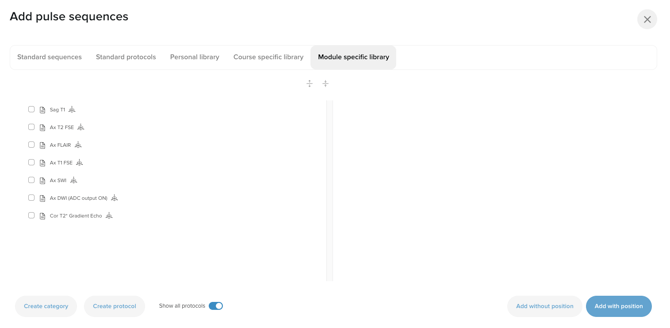
In both cases, learners who are assigned to the course or module can view and work with the content you add.
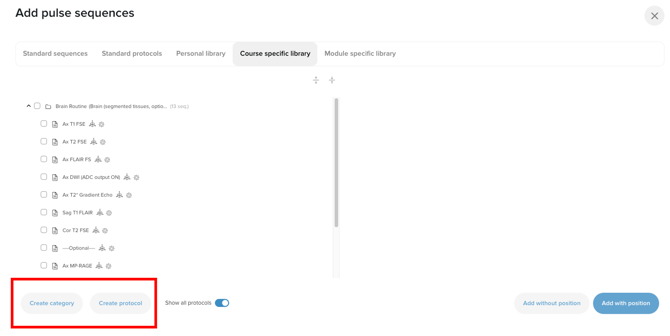
Instructors can create and edit protocols and sequences in course-specific libraries for any programs created by their own organization. Editing is not enabled for Corsmed-exclusive content.
If you want to use Corsmed content as a starting point, you can duplicate the relevant program and then make your edits in the copied version.
Conclusion
You’ve learned how to access the Course and Module Specific Libraries, and when to use each one to give your learners the right sequences and protocols at the right level.