![corsmed_no_clear_space_@16x-1.png]](https://help.corsmed.com/hs-fs/hubfs/corsmed_no_clear_space_@16x-1.png?height=40&name=corsmed_no_clear_space_@16x-1.png)
Create and save sequences to the libraries
Open the program editor
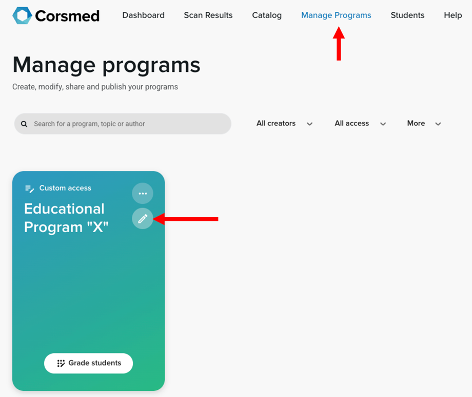
- Go to Manage Programs.
- Find the program you want to edit and click the pen icon.
Select the course and module
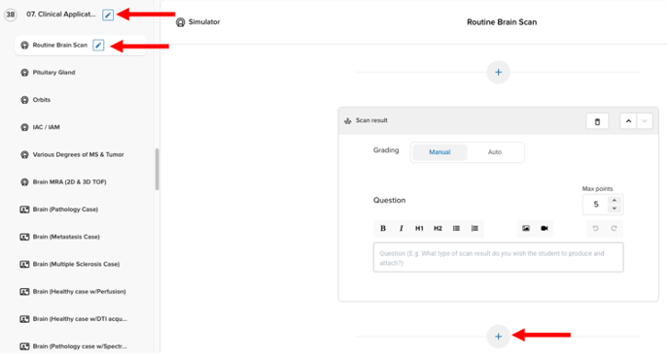
- Open the course and module where you want learners to access the sequences.
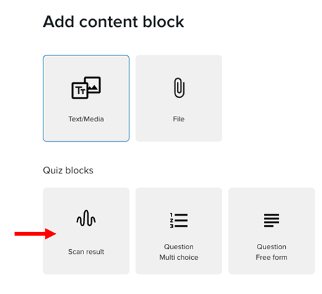
- Inside the module, click the + icon to add a content block.
- Select Scan Result.
Launch the simulator
- Set the Scan Result block grading to Auto.
- Click Start Simulator.
Build and save your sequences
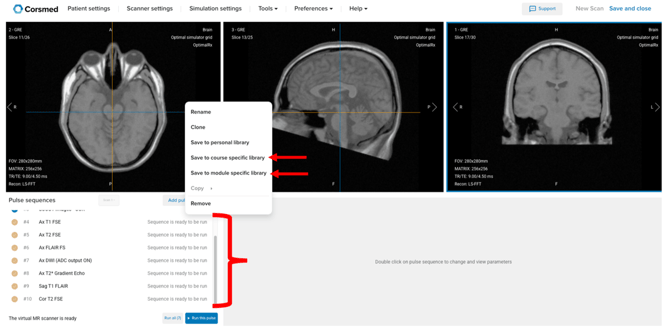
- Create the sequences (and protocols) you want learners to use.
- Choose whether sequences should include:
- Predefined slice positioning and coverage
- Full parameter configuration
- Or no planning at all, leaving setup to your learners
- Choose whether sequences should include:
- Right-click a sequence and select Save to Course Specific Library or Save to Module Specific Library.
Saving to these libraries is an instructor-only capability. Learners can’t add or edit content in these locations.
Organize the library for learners
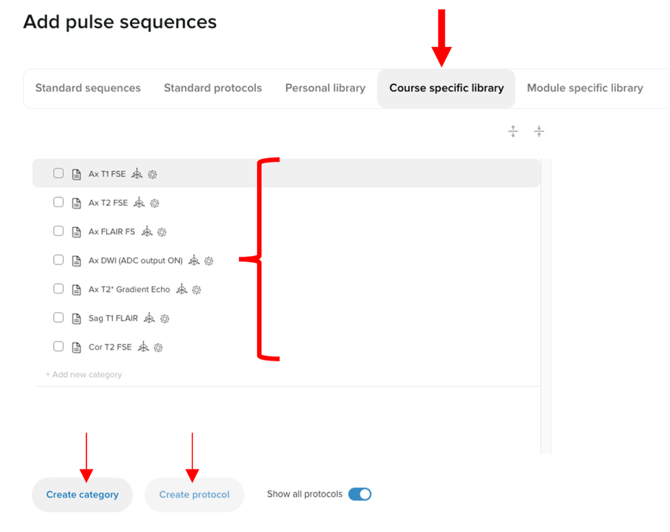
- Click Add Pulse Sequence.
- Navigate to the Course or Module Specific Library.
- Arrange your sequences as needed:
- Create categories or protocols.
- Reorder or edit items to create an intuitive learning flow.
You can give instructions to learners either verbally or by adding guidance as text content in the module.
Conclusion
You’ve learned how to create, save, and manage pulse sequences using the Course and Module Specific Libraries. This enables you to deliver structured, consistent, and effective MRI simulation experiences for your learners.