![corsmed_no_clear_space_@16x-1.png]](https://help.corsmed.com/hs-fs/hubfs/corsmed_no_clear_space_@16x-1.png?height=40&name=corsmed_no_clear_space_@16x-1.png)
Start on your dashboard
When you log in, you land on your Dashboard, the main hub where you can move to any part of the platform.
Dashboard sections
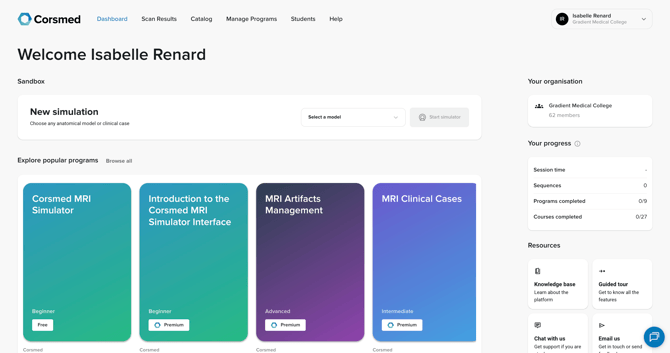
Sandbox
- Click here to start a simulation and access the Corsmed MRI simulator.
Your active programs
- Continue learning in the programs you’ve already started.
Programs from your institution
- Browse programs created and shared by your institution.
Corsmed programs available to you
- Explore additional programs offered by Corsmed.
Your organization
- See all organizations you belong to.
Your progress
- Track key learning stats:
- Session time: shows your total time spent in simulation sessions.
- Sequences: count the successful experiments you have completed.
- Programs completed: appear as X/Y, where X is completed items and Y is the total available to you.
- Courses completed: appear as X/Y, where X is completed items and Y is the total available to you.
Resources
- Get help whenever you need it. Choose:
- Knowledge base: information about the platform
- Guided tour: a walkthrough for new or returning learners
- Chat or email: reach out for support
View your scan results
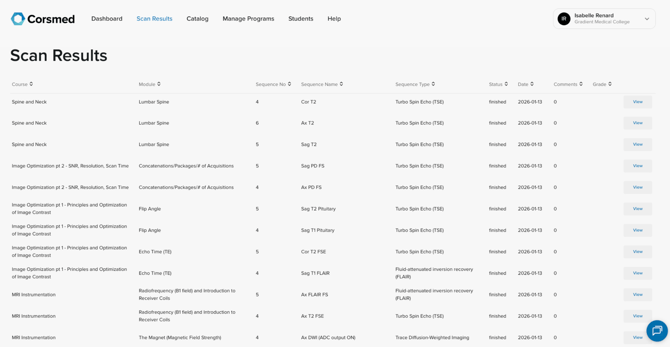
- Click Scan Results to see all simulator scans you’ve completed.
- For each scan, you can view:
- Course: the course the scan belongs to
- Module: the module where it was completed
- Sequence No: where this scan appeared in your sequence
- Sequence type: the type of sequence you used
- Status: finished or cancelled
- Date: when you completed the scan
- Comments: feedback from your instructor
- Grade: the grade you received
- View: open and review your scan
Browse programs in the catalog
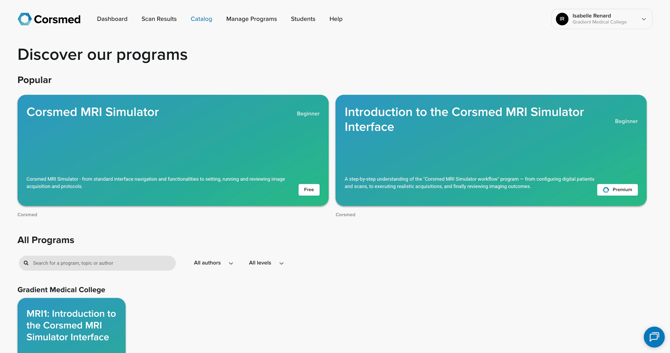
- Click Catalog to explore all programs available to you. Programs are organized into the following sections:
- Popular: commonly taken or recommended programs
- All programs: browse, search, and filter by author or difficulty level
- Programs from your institution: programs created and shared by your organization
- Programs from Corsmed: additional programs offered by Corsmed
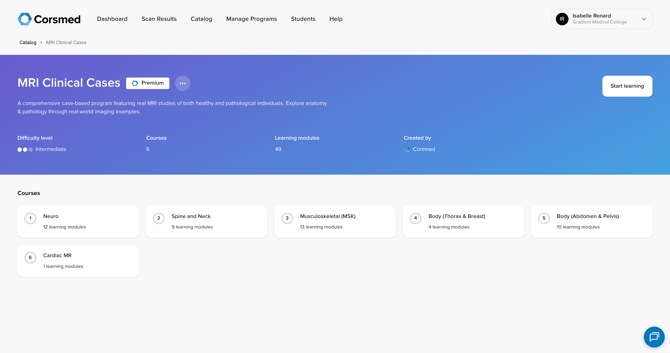
- For each program, you can see:
- Percentage completed (only shows if you’ve started the program)
- Difficulty level
- Green: Beginner
- Blue: Intermediate
- Purple: Advanced
- Number of courses
- Number of learning modules per course
- Tier (Premium or Free)
Manage your programs
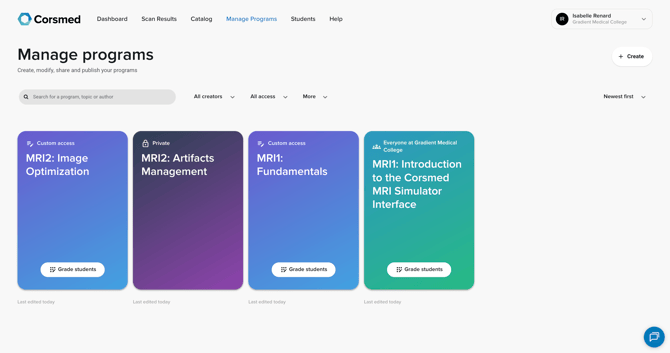
- Click Manage Programs to access your main workspace for creating and managing the learning experience.
- Here, you can:
- Create and edit programs
- Adjust user access
- Duplicate, archive, or delete programs
- Explore programs created by Corsmed
Manage your students
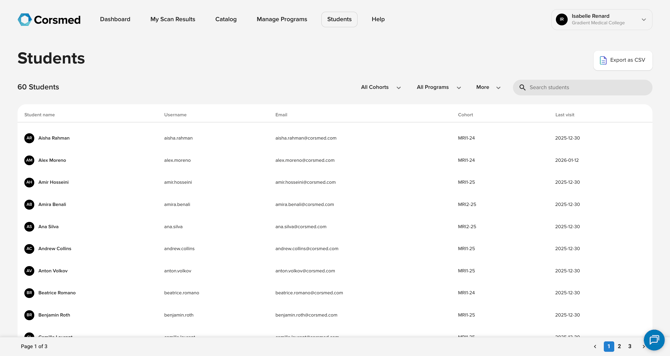
Click on Students to view, track, and support your learners.
You can filter learners by:
- Cohort
- Course
Click Export.CSV to export your learners using CSV.
For each learner, you can view:
- Name, username, email
- Cohort
- Last visit
- Modules finished
- Modules passed
- Simulation time
Click View on any learner to see more details.
Student page
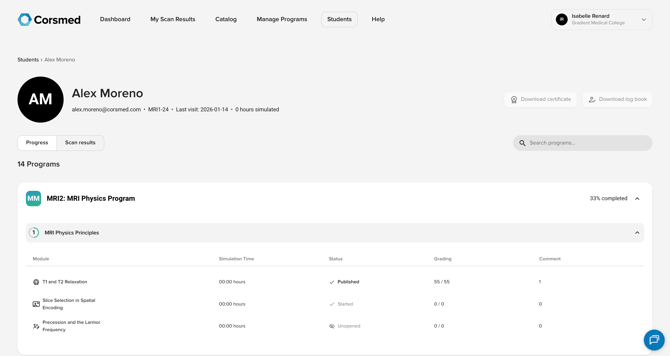
Inside a student's page you can:
- Adjust course access.
- Download the learner’s progress report or certificate.
- Navigate two tabs to monitor progress:
- Course progress
- View module progress, simulation time, grades, status, and attempts.
- Click Preview to see the learner’s submissions, such as scan results.
- Pulse sequences
- See each scan tied to its course, module, and sequence type.
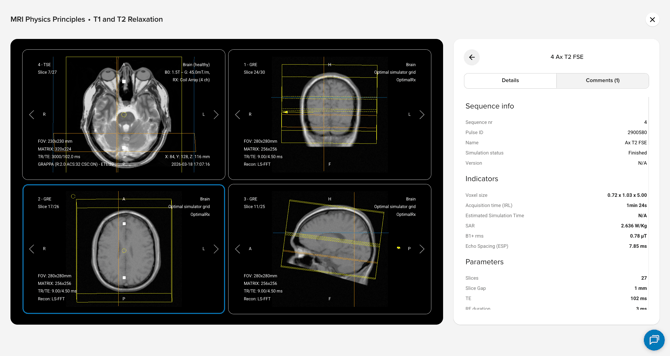
- To give feedback or grade a learner’s work, click View to review:
- Sequence info
- Indicators
- Parameters
- Simulation settings
- Course progress
Help
- Click Help in the navigation bar.
- You’ll be directed to the Knowledge Base for articles and guidance.
Conclusion
You've learned how to navigate the platform as an instructor and understand where to access programs, manage your learners, review scans, and get support when needed.