![corsmed_no_clear_space_@16x-1.png]](https://help.corsmed.com/hs-fs/hubfs/corsmed_no_clear_space_@16x-1.png?height=40&name=corsmed_no_clear_space_@16x-1.png)
Access the module specific library
- Open the Corsmed MRI Simulator from the dashboard or the module you’re working on.
- Click Add Pulse Sequence.
- Select the Module Specific Library.
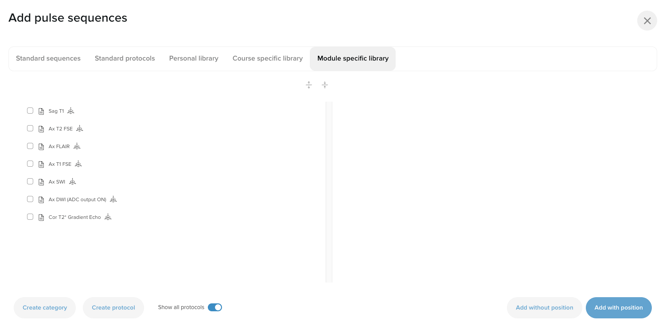
Module specific library overview
The Module Specific Library is designed for highly focused learning objectives at the individual module level.
You’ll typically use this library when your instructor wants you to work with a specific set of sequences or protocols for a module’s learning objectives. For example, a particular workflow, technique or assessment.
- It is created and managed by instructors and Corsmed.
- It is available to all users assigned to the module.
- The content in this library is only available within that specific module.
Unlike the Course Specific Library, the Module Specific Library can be different in every module and may include its own:
- Categories
- Protocols
- Pulse sequences
Conclusion
You’ve learned how to access the Module Specific Library, what it’s used for and its role in your learning using the Corsmed MRI Simulator.