![corsmed_no_clear_space_@16x-1.png]](https://help.corsmed.com/hs-fs/hubfs/corsmed_no_clear_space_@16x-1.png?height=40&name=corsmed_no_clear_space_@16x-1.png)
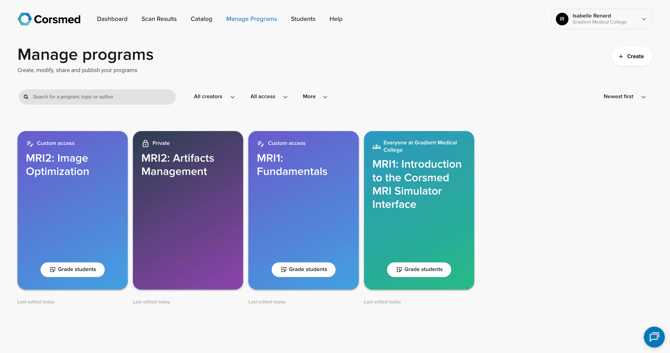
Navigate the Manage Programs tab
- Go to Manage Programs in your Dashboard.
- Browse your list of programs or use the search bar to find a specific one.
- Select sorting options to view programs from newest, oldest, or alphabetically (A–Z).
- Apply filters to view programs by creator, access type, or archived status.
Understand the program overview
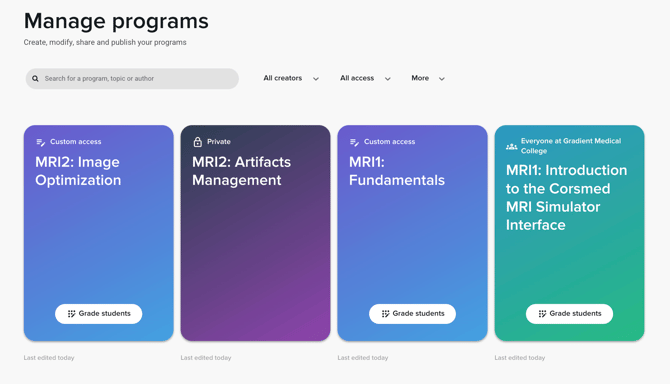
Each program card shows key information to help you quickly understand its status, such as:
- Last edited to see when the program was last updated.
- Access level to review who can access the program:
- Private
- Everyone
- Advanced access
- Whether the program is published and available for grading.
Take actions on a program
You can manage each program directly from the overview.
Use the three-dot menu
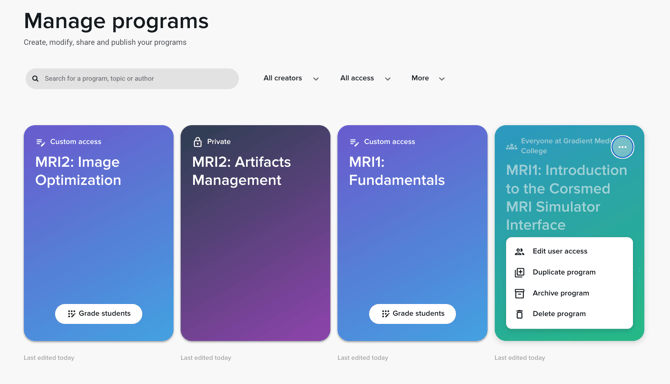
- Hover over a program to show the three dots.
- Click the three dots to open the action menu.
- Select one of the following options:
- Edit user access to control who can access the program
- Duplicate program to create a copy
- Archive program to remove it from active lists
- Delete program if you no longer need it
Open the Program Editor
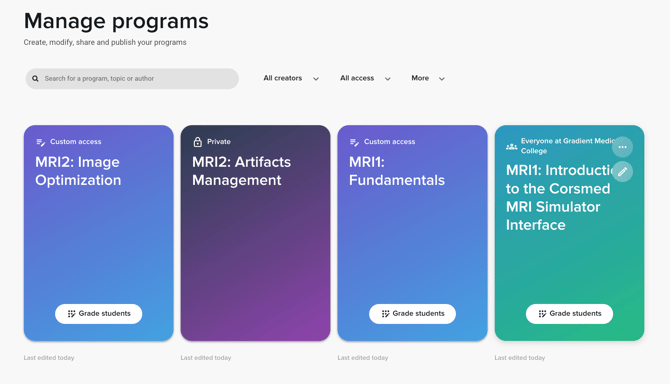
- Click the pen icon on a program to open the Program Editor.
- Update and manage the program’s content.
Conclusion
You’ve learned how to navigate the Manage Programs tab, understand each program’s overview, and take key actions to manage your programs effectively.