![corsmed_no_clear_space_@16x-1.png]](https://help.corsmed.com/hs-fs/hubfs/corsmed_no_clear_space_@16x-1.png?height=40&name=corsmed_no_clear_space_@16x-1.png)
Choose a module type
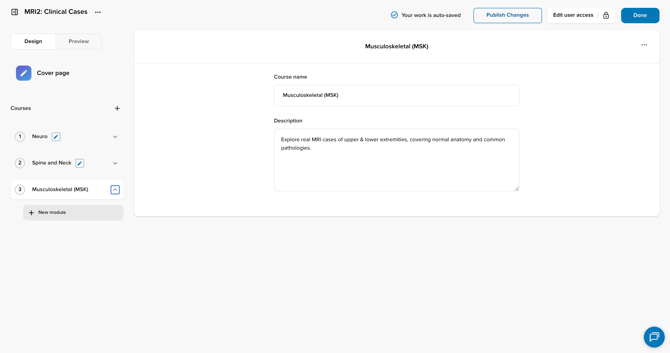
- In your course, click + Create a module.
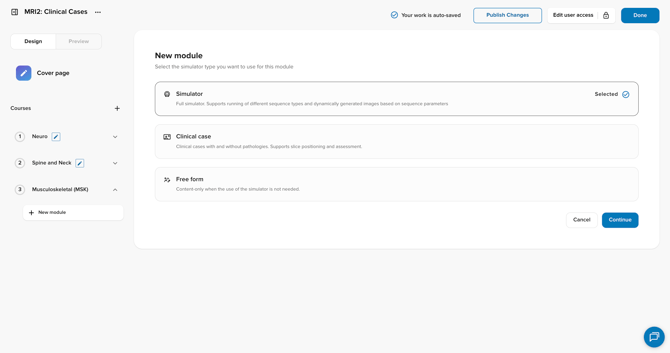
- Select the module type you want to add:
- Simulator: full simulator experience; supports multiple sequence types and dynamically generated images based on parameters.
- Clinical case: clinical scenarios with or without pathology; supports slice positioning and assessment.
- Free form: content-only modules for when the simulator isn’t needed.
- Click Continue.
Module type details
Each module type includes settings and content-building options that you can use to define how grading and publishing behave.
Module settings overview
Enable Pass / Fail
When this option is enabled, learners receive a Passed or Failed status after grading is completed.
- Enter the pass threshold (percentage required to pass).
- Enable Resubmissions for failed attempts if desired.
The final score is calculated by summing all question scores within the module.
This option can be used with both automatic and manual grading workflows.
Automatic publishing after grading
When this option is enabled, results are graded automatically.
Available only for automatically graded modules.
Simulator module
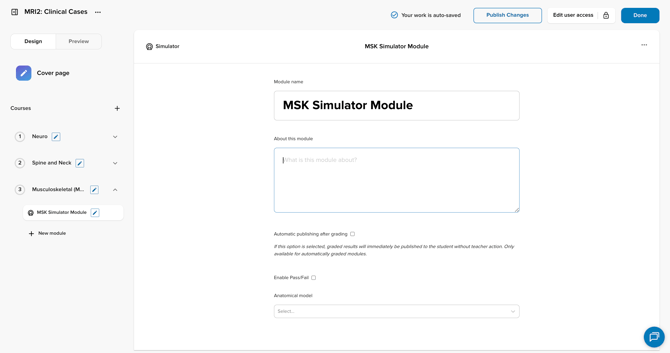
Enter module settings
- Enter the module name and description.
- You can update these at any time.
- Enable Automatic publishing after grading (optional).
- Enable Pass/fail (optional).
- Select the anatomical model to be simulated.
- Select the coil, which depends on the anatomical model chosen.
Add content blocks
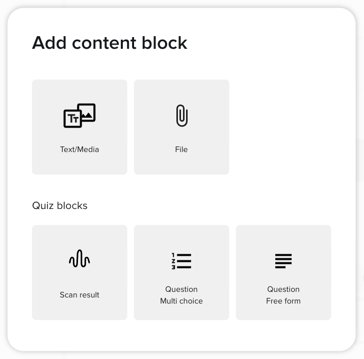
- Click the + sign to add content.
- Choose one of the following content block types:
- Text / Media
- File
- Quiz block
- Scan result
- Question (multiple choice)
- Question (free form)
Clinical case module
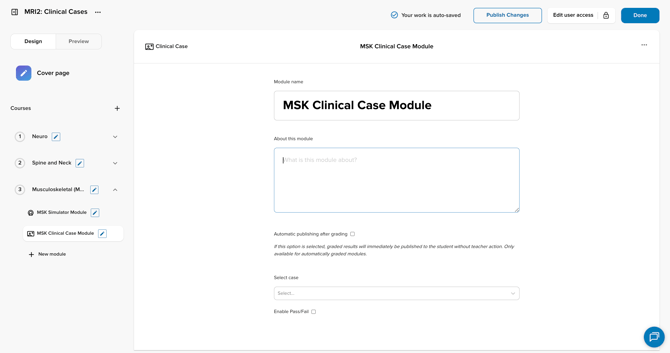
Enter module settings
- Enter the module name and description.
- You can change these at any time.
- Enable Automatic publishing after grading (optional).
- Enable Pass/fail (optional).
- Select the clinical case to be used in the module.
Add content blocks
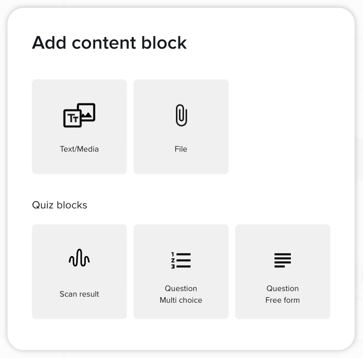
- Click the + sign to add content.
- Choose one of the following content block types:
- Text / Media
- File
- Quiz block
- Scan result
- Question (multiple choice)
- Question (free form)
Free form module
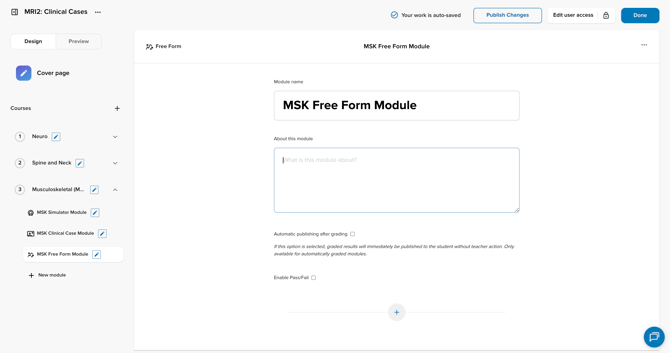
Enter module settings
- Enter the module name and description.
- You can update these anytime.
- Enable Automatic publishing after grading (optional).
- Enable Pass/fail (optional).
Add content blocks
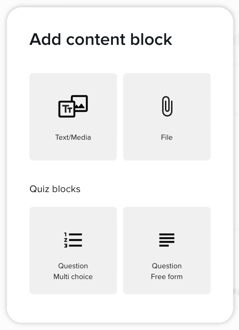
- Click the + sign to add content.
- Choose one of the following content block types:
- Text / Media
- File
- Quiz block
- Question (multiple choice)
- Question (free form)
Conclusion
You've created a new module, completed its settings, and added content blocks to build learning activities for your learners.