![corsmed_no_clear_space_@16x-1.png]](https://help.corsmed.com/hs-fs/hubfs/corsmed_no_clear_space_@16x-1.png?height=40&name=corsmed_no_clear_space_@16x-1.png)
Navigate the key areas
When you enter the Corsmed MRI Simulator (from the dashboard or a module), you’ll see several key areas.
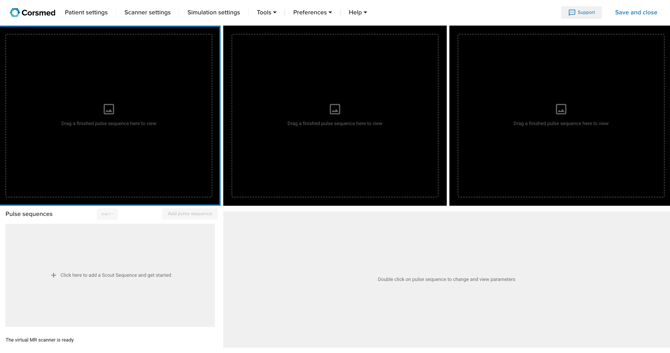
Simulator header
Use the simulator header to access simulator settings, tools, and support.
- Patient settings: simulate different physiological conditions, breathing patterns, and motion types.
- Scanner settings: simulate various coils, magnetic field strengths, and gradient strengths.
- Simulation settings: simulate effects like noise, chemical shift, patient motion and susceptibility.
- Tools: change display options and use tools like Image Viewer, 3D Viewer and Isocenter.
- Preferences: adjust your preferences, including distance and time units.
- Help
- Knowledge base
- Guided tour
- Support: open the chat to talk with Corsmed’s support.
- Save and close: save and close your simulation session.
If you're idle for more than 15 minutes the session will automatically save and close.
Viewports
The simulator includes three viewports.
Use the viewports to:
- Plan a pulse sequence using your scout images.
- View and analyze the MR images you generate.
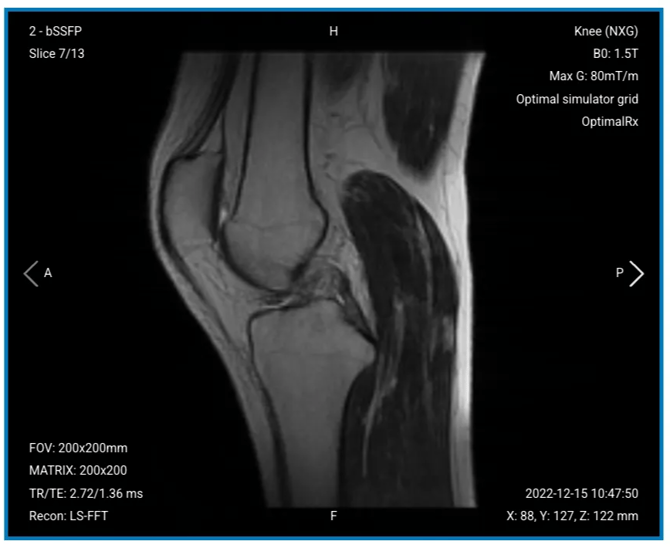
Each viewport contain information in the corners as follows:
Top-left corner
- Number of sequences run (e.g. 2, meaning the second sequence run)
- Name of sequence (e.g. bSSFP)
- Slice number over total number of slices in that series (e.g. Slice 7/13)
Top-right corner
- Model name (e.g. Knee (NXG))
- B0 strength (e.g. B0: 1.5T)
- Max gradient strength configuration (e.g. 80mT/m)
- Resolution of the model (e.g. optimal, which cannot be changed so it will always show this)
- Name of the selected coil (e.g. Optimal Rx)
Left-bottom corner
- FOV size (e.g. 200x200mm)
- Matrix size (e.g. 200x200)
- TR and TE values (e.g. 2.72/1.36ms)
- Reconstruction algorithm (e.g. LS-FFT)
Right-bottom corner
- Date and time of acquisition (e.g. 2022-12-15 10:47:50)
- Spatial coordinates (e.g. X: 88, Y:127, Z: 122mm)
Pulse sequence list
Use the Pulse Sequence List to manage the sequences you add and run.
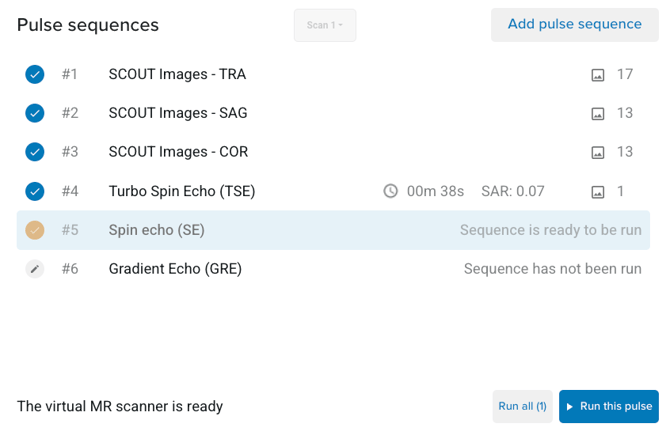
Information per pulse sequence:
- Blue check mark: a finished, already run sequence.
- Golden check mark: a sequence ready to be run.
- Grey pencil mark: a sequence that is not yet ready to be run.
- Clock: The time it would take to run a pulse sequence on a real MRI scanner.
- SAR: Specific Absorption Rate is a measure of the rate at which radiofrequency (RF) energy is absorbed by the patient’s body during an MRI scan. It is defined as the RF power absorbed per unit mass of tissue, expressed in watts per kilogram (W/kg).
- Image icon: The number of slices of a sequence is indicated by the small image icon and its corresponding number.
Parameter tabs
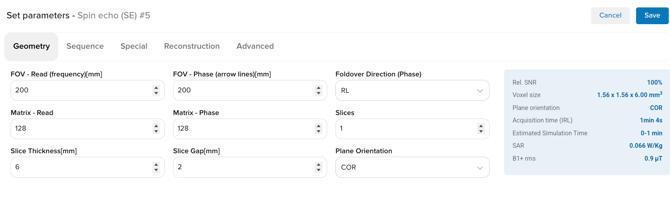
Use the Parameter Tabs to adjust the parameters for the selected pulse sequence, which includes five tabs:
- Geometry: includes all parameters that refer to spatial coordinates and orientation that strictly depends on the area of interest.
- Sequence: includes all parameters that help manipulate contrast of the image.
- Special: includes all parameters that are specific to the opened sequence.
- Reconstruction: includes different image reconstructions algorithms.
- Advanced: includes all parameters that involve advanced acquisition techniques. For example, saturation bands and multiple stacks acquisition.
Update settings here before running your scan.
Conclusion
You’ve learned the main areas of the Corsmed MRI Simulator to navigate the interface with its sections and tabs.