![corsmed_no_clear_space_@16x-1.png]](https://help.corsmed.com/hs-fs/hubfs/corsmed_no_clear_space_@16x-1.png?height=40&name=corsmed_no_clear_space_@16x-1.png)
Open the Parameter Tabs
- Select a pulse sequence in the Pulse Sequences List.
- Double-click on the pulse sequence to open the Parameter Tabs.
Use the Parameter Tabs
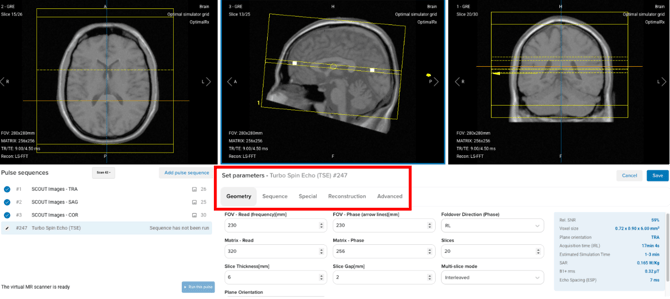
Regardless of pulse sequence type, parameters are grouped into five tabs:
- Geometry: includes all parameters that refers to spatial coordinates and orientation that strictly depends on the area of interest.
- Sequence: includes all parameters that help manipulate contrast of the image.
- Special: includes all parameters that are specific to the opened sequence.
- Reconstruction: includes different image reconstructions algorithms.
- Advanced: includes all parameters that involve advanced acquisition techniques. For example, saturation bands and multiple stacks acquisition.
For each parameter, Corsmed provides the equivalent terminology used by major MRI vendors, such as GE, Siemens, and Philips. This helps you connect parameters and their functions to real clinical systems.
Advanced sequence parameters
Advanced sequence types include additional sequence-specific parameters to adjust in the Parameter Tabs, such as DIXON, cardiac perfusion, MOLLI, T2-prepared SSFP, LGE, and 3D TOF.
These parameter settings will appear automatically when you select an advanced sequence, and reflect the unique physics and timing requirements of each sequence type.
Conclusion
You've learned how to navigate to and use the Parameter Tabs to adjust pulse sequence settings.