![corsmed_no_clear_space_@16x-1.png]](https://help.corsmed.com/hs-fs/hubfs/corsmed_no_clear_space_@16x-1.png?height=40&name=corsmed_no_clear_space_@16x-1.png)
Access the personal library
- Open the Corsmed MRI Simulator.
- Click Add Pulse Sequence.
- Select the Personal Library.
Understand the personal library
The Personal Library is your private workspace to store and organize pulse sequences based on your own learning, teaching, or experimentation goals.
It is available to all users, where new accounts start with an empty Personal Library.
Save a sequence to your personal library
- Add a sequence from another library
- For example, Standard sequences or Standard protocols.
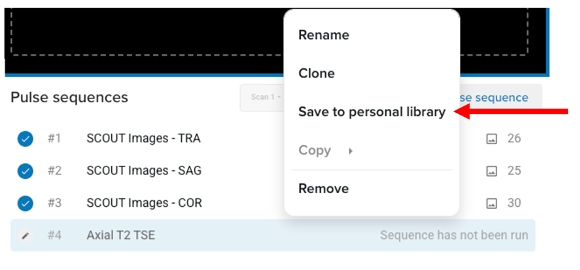
- Right-click the sequence in your working list.
- Select Save to Personal Library.
Organize your personal library
In your Personal Library, you can:
- Create your own categories and protocols
- Rename and reorder items
- Drag and drop sequences to reorganize them freely
At the bottom of the library, you can use:
- Create Category
- Create Protocol
This provides complete flexibility to design your own protocol structures.
Show all protocols (optional)
The Show all protocols toggle is available here and works the same way as in the Standard protocols library.
- When ON, you see all protocols.
- When OFF, you see only protocols relevant to your current anatomical model.
Conclusion
You've learned how to access your Personal library, save sequences to it, and organize your own categories and protocols in the Corsmed MRI Simulator.