![corsmed_no_clear_space_@16x-1.png]](https://help.corsmed.com/hs-fs/hubfs/corsmed_no_clear_space_@16x-1.png?height=40&name=corsmed_no_clear_space_@16x-1.png)
Understand the structure
A program contains courses, and each course contains modules.
You’ll work through modules to complete a course, and then progress through courses to complete a program.
Learning overview
On the learning page of a program, you’ll see two main sections:
- Learning content
- Program sidebar
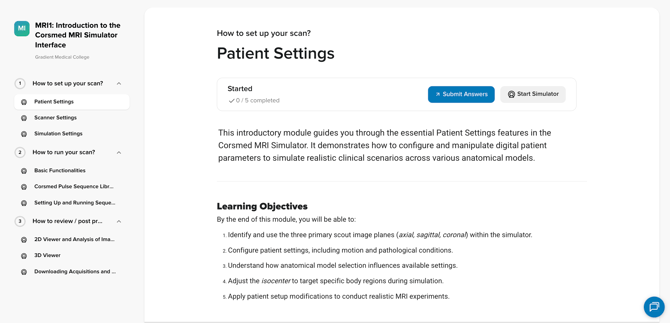
Learning content
- View the module title, description, and learning objectives.
- See how many submissions are expected and how many you’ve already completed.
- Click Start Simulator when you’re ready to start scanning for an assignment.
- Click Submit Answers when you’re ready to submit your completed assignments.
- Your work is auto-saved as you move through the content.
- Look for brief pop-ups confirming your progress is saved.
- As you scroll, the footer always shows:
- Your submission progress
- A Submit Answers button
- The option to Start Simulator
Program sidebar
-
View the program name at the top.
-
Click a course to expand it and view its modules.
- As you complete modules, you’ll see:
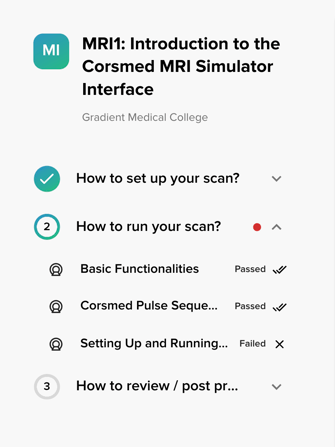
- completed module: the progress circle next to the course fills up
- red dot: one or more modules have been failed.
- checkmark: all modules are completed and passed.
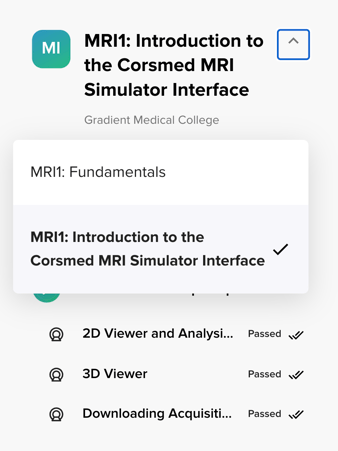
- To switch programs, click the program name in the sidebar and select another.
If you see the eye with a line through it icon on a module, the content is locked. Contact your instructor if you need access.
Conclusion
You've learned how programs, courses, and modules work together and how to navigate your learning pathway.