![corsmed_no_clear_space_@16x-1.png]](https://help.corsmed.com/hs-fs/hubfs/corsmed_no_clear_space_@16x-1.png?height=40&name=corsmed_no_clear_space_@16x-1.png)
Shortcuts overview
The Corsmed MRI Simulator provides several time-saving planning shortcuts that can be accessed by right-clicking directly on an image within any viewport.
These tools are designed to streamline slice planning and improve efficiency, especially when working with multi-planar or multi-phase sequences.
All shortcuts apply only to the currently opened sequence and can be used independently in each viewport.
Open the viewport shortcut menu
- Open the sequence you want to plan.
- Click a viewport to make it active.
- Right-click inside the viewport to open the shortcut menu.
- Select the shortcut you want to use.
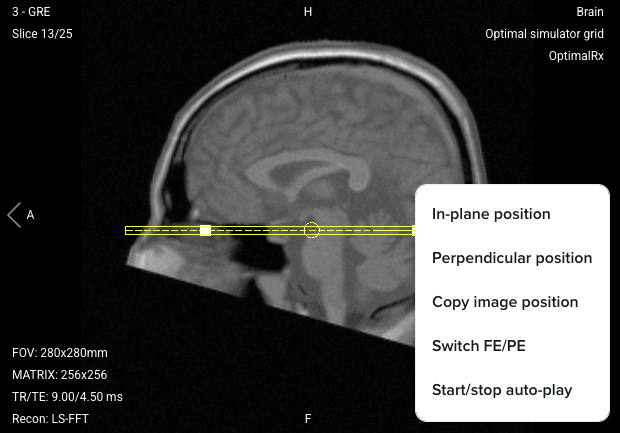
Viewport shortcuts
In-plane position
Sets the orientation of the currently opened sequence to match the imaging plane displayed in the viewport.
Use it when: you want to quickly align a sequence to an already well-positioned reference image.
Perpendicular position
Reorients the slice plane so that it becomes perpendicular to the plane displayed in the viewport.
Use it when: you want fast orthogonal planning (e.g. using this option on an axial image, it will set a coronal plane orientation) without manual repositioning.
Copy image position
Copies the exact position and orientation of the single slice currently displayed in the viewport.
Use it when: you working with cardiac MRI, where precise slice-to-slice matching across different sequences or contrasts is required.
Switch FE / PE
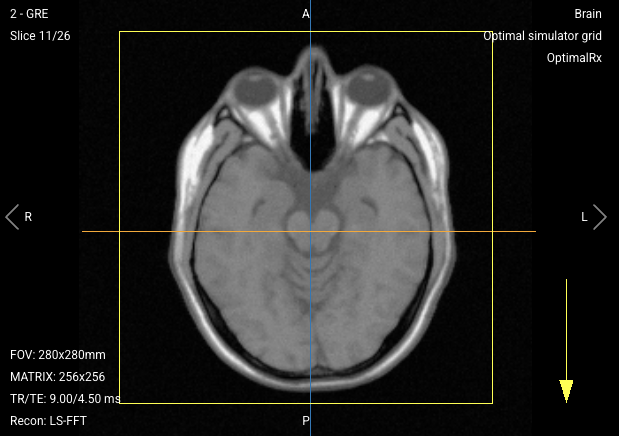
Quickly swaps the Frequency Encoding (FE) and Phase Encoding (PE) directions.
- The Phase Encoding direction is always indicated by a yellow arrow on the viewport.
Use it when: you want to reposition potential foldover artifacts or optimize artifact direction without reopening geometry settings.
- This can also be changed in the Geometry tab or by rotating the slice directly.
Start / stop auto-play
Starts or stops cine (auto-play) mode, allowing sequential images to play automatically.
Use it when: you have multi-phase sequences, such as cardiac cine imaging, to visualize motion and temporal dynamics.
Conclusion
You've learned how to use the viewport right-click shortcuts to plan slices faster.