![corsmed_no_clear_space_@16x-1.png]](https://help.corsmed.com/hs-fs/hubfs/corsmed_no_clear_space_@16x-1.png?height=40&name=corsmed_no_clear_space_@16x-1.png)
Add a pulse sequence
- Click Add Pulse Sequence.
- Add the pulse sequence you want to use saturation bands with.
Enable saturation bands
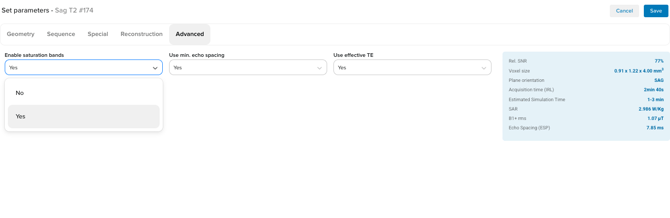
- Open the Advanced tab in the Parameter box.
- Set Enable saturation bands to Yes.
Configure saturation bands
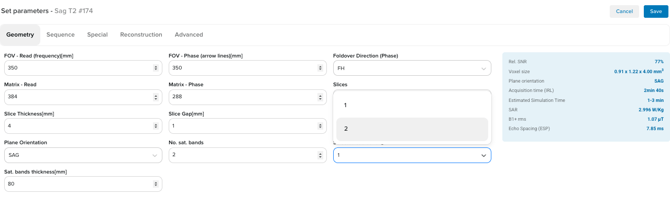
- Open the Geometry tab.
- Select how many saturation bands you want to use in No. sat. bands.
- Choose which band to adjust using Selected sat. band.
- Set Sat. bands thickness [mm] to define the band size.
All saturation bands will share the same thickness.
Position and adjust the saturation bands
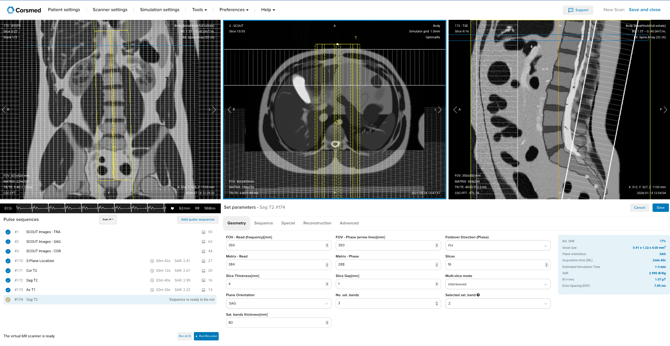
- Press S to interact with the selected saturation band in the viewport.
- Click and drag the white box in the center of the band to:
- Move the band
- Rotate the band
- Adjust the band until you’re satisfied with its position and orientation.
Adjust multiple saturation bands
- Change Selected sat. band to switch to another saturation band.
- Repeat the adjustment steps for each band you want to configure.
Save and run the pulse sequence
- Click Save when you’re done setting up all saturation bands.
- Run the pulse sequence.
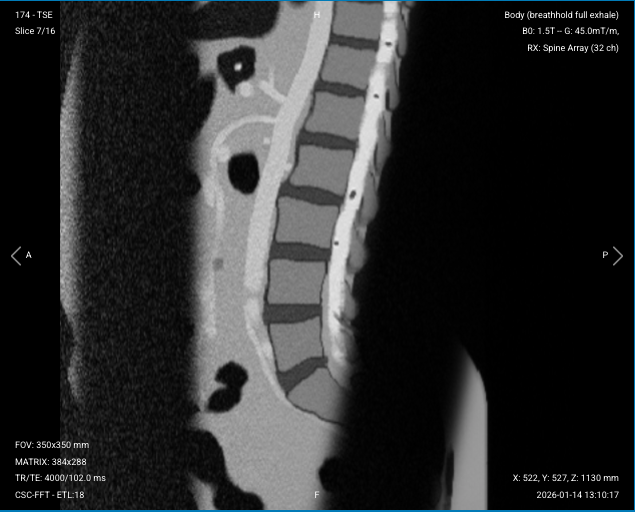
The black bands in the picture are the sat bands we placed in the previous steps.
Conclusion
You've learned how to enable, position, and adjust one or more saturation bands and run a pulse sequence with your selected setup.