![corsmed_no_clear_space_@16x-1.png]](https://help.corsmed.com/hs-fs/hubfs/corsmed_no_clear_space_@16x-1.png?height=40&name=corsmed_no_clear_space_@16x-1.png)
Access the Standard Protocols
- Open the Corsmed MRI Simulator.
- Click Add Pulse Sequence.
- Select the Standard Protocols.
Standard protocols overview
The Standard Protocols contains preconfigured MRI protocols organized by anatomical region, including:
- Neuro
- Neck
- Chest / Thorax
- Spine
- Upper Extremities
- Abdomen
- Pelvis
- Lower Extremities
Each protocol reflects commonly accepted MRI clinical practice and is aligned with widely used references such as MRI Master.
Protocols are grouped into expandable categories, making it easy to browse by body part or clinical indication.
Protocol labels and anatomical models
Each protocol label includes a note in parentheses that indicates the anatomical model (digital patient) used when the protocol was created and optimized.
For example:
Cardiac (Male body – segmented tissues, optional pathologies)
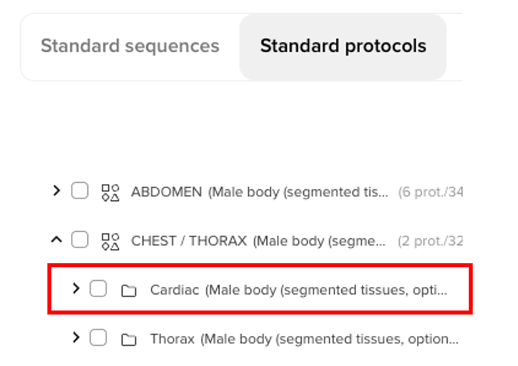
This helps you quickly understand which anatomical model the protocol is intended for.
Filter protocols by anatomical model
By default Show all protocols is ON, meaning all protocols are visible regardless of the anatomical model you are currently using.
When toggled OFF, only protocols optimized for your active anatomical model will be displayed. This helps you quickly find the most relevant protocols for your simulation session.

Standard Sequences and Standard Protocols are created and maintained exclusively by Corsmed administrators, but they are fully available for viewing and use by all users.
Conclusion
You’ve learned how to access the Standard Protocols, understand protocol labels, and filter protocols to match your anatomical model in the Corsmed MRI Simulator.