![corsmed_no_clear_space_@16x-1.png]](https://help.corsmed.com/hs-fs/hubfs/corsmed_no_clear_space_@16x-1.png?height=40&name=corsmed_no_clear_space_@16x-1.png)
New scan overview
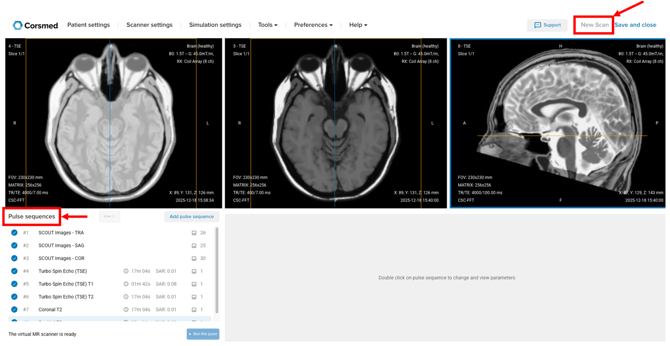
In the Corsmed MRI Simulator, the New Scan appears in the top-right corner of the MRI Simulator interface once you’ve added one or more pulse sequences.
It allows you to reset your Pulse Sequence List without leaving the current simulation session.
Purpose of new scan
As you add more pulse sequences, the Pulse Sequence List can become long and require scrolling. The New Scan allows you to start fresh instantly, making it easier to stay focused and organized during experimentation.
Ideal when you want to start a completely new set of pulse sequences.
Ways to manage your pulse sequences
Option 1: Start a new scan (recommended)
- Click New Scan to create a new and empty Pulse Sequence List while keeping you in the same simulation session.
- Switch between scans using the navigation button between Pulse sequences and Add pulse sequence
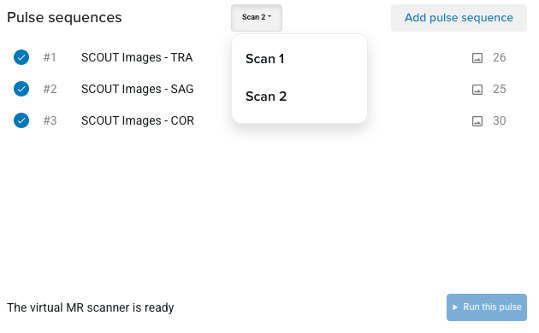
There is no limit to how many scans you can create.
Option 2: Remove selected sequences
If you want to clean up selectively:
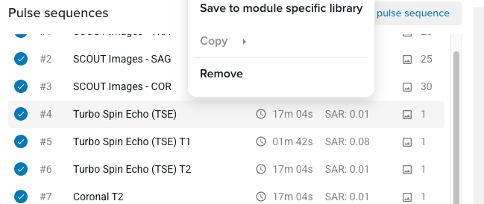
- Right-click a pulse sequence and select Remove to delete a single item, or
- Select multiple sequences and click Remove selected to delete them together.
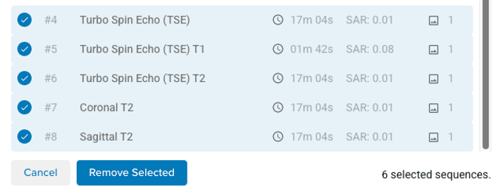
This option is useful when you want to remove specific sequences rather than clearing the entire list.
Removing a pulse sequence only clears it from your current working list, it does not delete your scan results.
All your scan results are safely stored and can always be reviewed in Scan Results, including for scan submissions as part of your learning modules.
Conclusion
You’ve learned how to use New Scan to reset your Pulse Sequences List and manage your workflow efficiently while scanning in the Corsmed MRI Simulator.