![corsmed_no_clear_space_@16x-1.png]](https://help.corsmed.com/hs-fs/hubfs/corsmed_no_clear_space_@16x-1.png?height=40&name=corsmed_no_clear_space_@16x-1.png)
Open a program from catalog
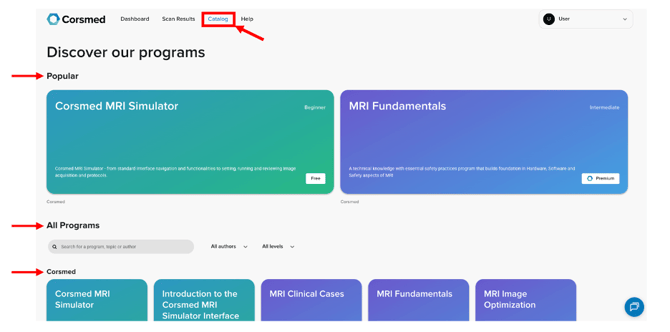
- Click Catalog.
- Find programs in these sections:
- Popular
- All Programs
- Corsmed (availability may vary based on your subscription)
- Click the program you want to open.
- Look at the program status:
- Start learning: available to you
- Resume learning: you’ve opened it before
- Upgrade to unlock: requires a paid subscription
Open a course and module
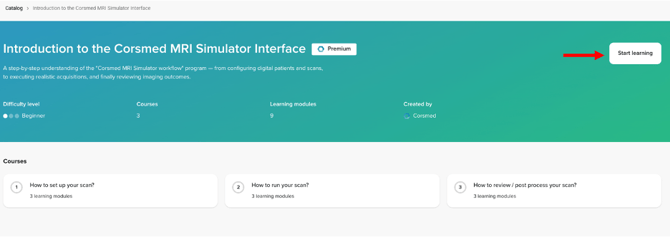
- Click Start learning or Resume learning to open the program
- In the left panel, browse the courses and modules:
- Courses are numbered with circular icons.
- Modules appear with a magnet icon.
- Click the module you want to work on.
Start the simulator from the module
- Review the module content on the right side.
- Click Start simulator (if available).
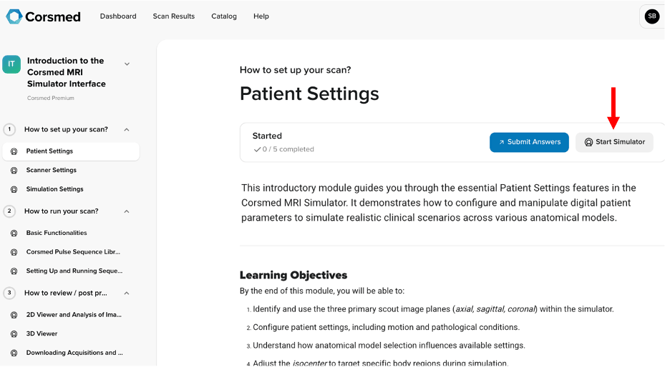
If you don’t see Start Simulator near Submit Answers, the module does not have an anatomical model assigned. It may be informational or include only quiz questions.
Launch the simulator
The Corsmed MRI Simulator opens in a new browser tab, and you’re ready to begin your simulation.
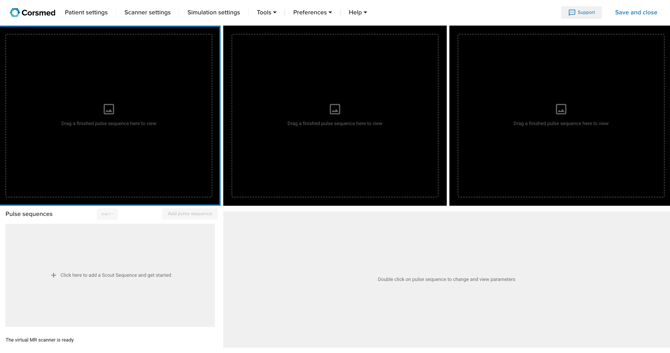
If nothing opens, verify that you allow pop-ups / new tabs for the Corsmed Training platform in your browser settings.
Conclusion
You've learned how to start a simulation session from a module and launch the Corsmed MRI Simulator in a new tab.