![corsmed_no_clear_space_@16x-1.png]](https://help.corsmed.com/hs-fs/hubfs/corsmed_no_clear_space_@16x-1.png?height=40&name=corsmed_no_clear_space_@16x-1.png)
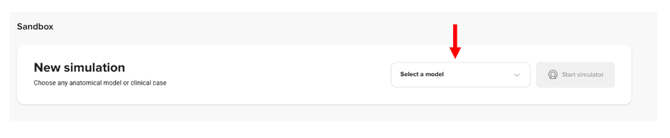
Navigate to the sandbox on your dashboard
- As you enter the Corsmed MRI Simulator and LMS, you will land on the Dashboard.
- From the Dashboard, locate the Sandbox section.
Select an anatomical model
- Click Select a model in the sandbox.
- Choose an anatomical model from the dropdown list.
- Click Start simulator.
Anatomical models (also referred to as digital patients) represent different body regions and include specific characteristics relevant to your learning or teaching goals.
Launch the simulator
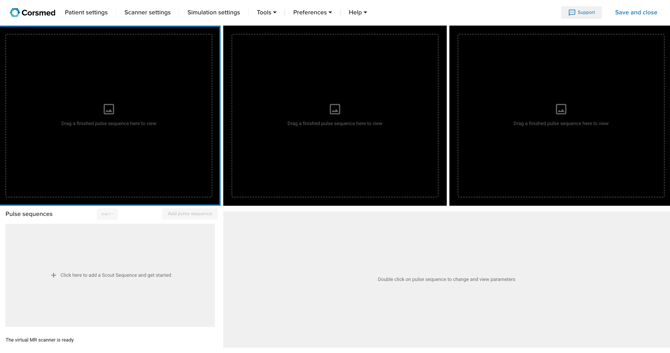
The Corsmed MRI Simulator opens in a new browser tab, and you’re ready to begin your simulation.
If nothing opens, verify that you allow pop-ups / new tabs for the Corsmed Training platform in your browser settings.
Conclusion
You've learned how to start a simulation session from the Dashboard and launch the Corsmed MRI Simulator in a new tab.