![corsmed_no_clear_space_@16x-1.png]](https://help.corsmed.com/hs-fs/hubfs/corsmed_no_clear_space_@16x-1.png?height=40&name=corsmed_no_clear_space_@16x-1.png)
Complete each assignment type
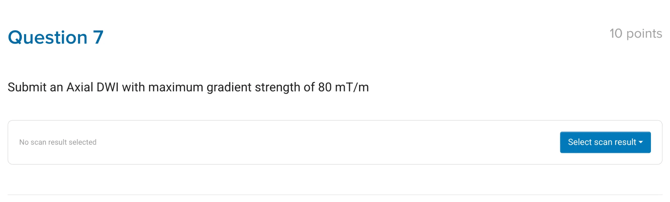
Scan result
- Create scans in the Corsmed MRI Simulator, according to the instructions provided.
- Click Select scan result to choose the scan you want to submit.
- Your instructor will be able to see:
- The resulting image stack
- The parameters and slice positions you used
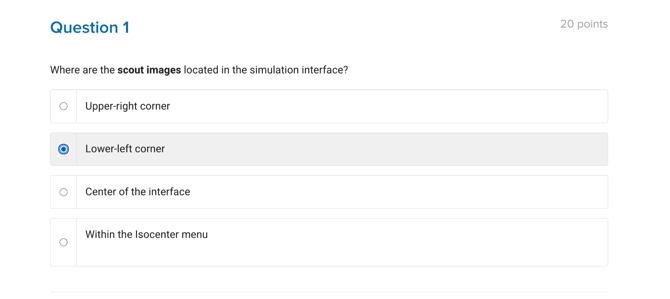
Single choice
- Read the question.
- Click the one answer you believe is correct.
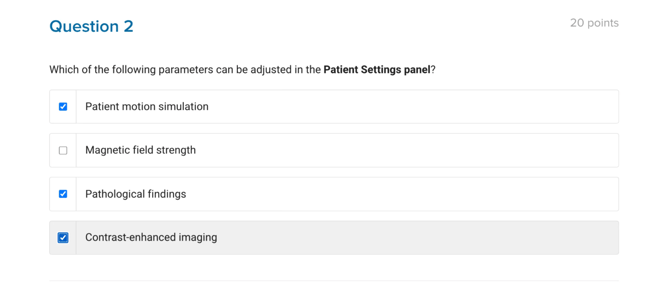
Multi choice
- Read the question.
- Click one or more answers you believe are correct.
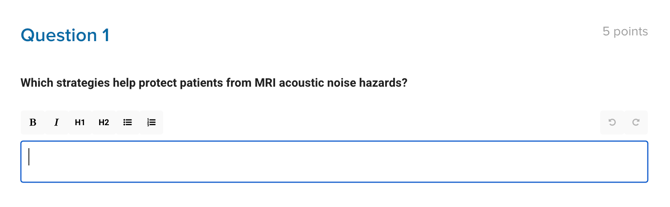
Free text
- Enter your answer in your own words.
- Provide as much explanation or reasoning as needed.
- This is similar to an essay-style question.
Submit your assignments
- After completing all assignments in a module, click Submit Answers in the footer or header.
- You’ll be asked to confirm your submission to avoid accidental submissions.
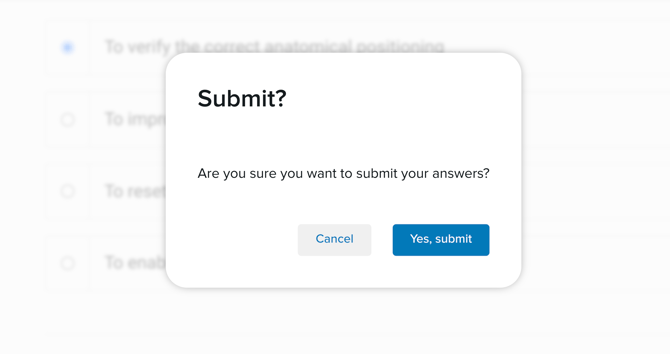
- You’ll be asked to confirm your submission to avoid accidental submissions.
- If your instructor has enabled automatic grading, you’ll see your result immediately.
- Passed:

- Failed:

- Passed:
- If not, you’ll receive your grade and feedback once your instructor has reviewed your work.

- If the module doesn’t contain any submissions, you can click Mark as Complete to finish it on your own.
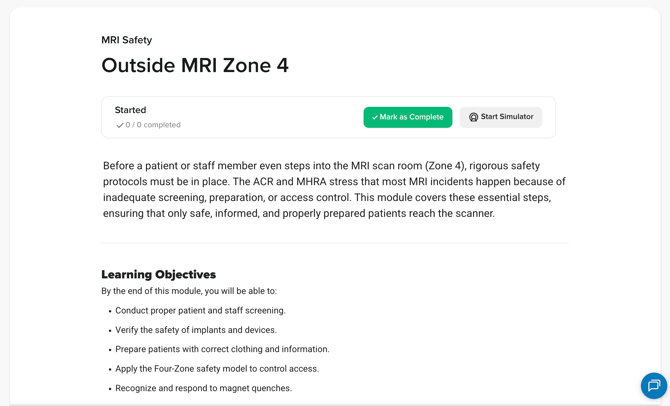
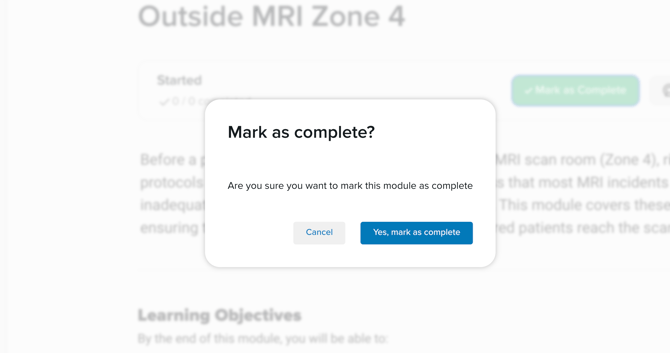
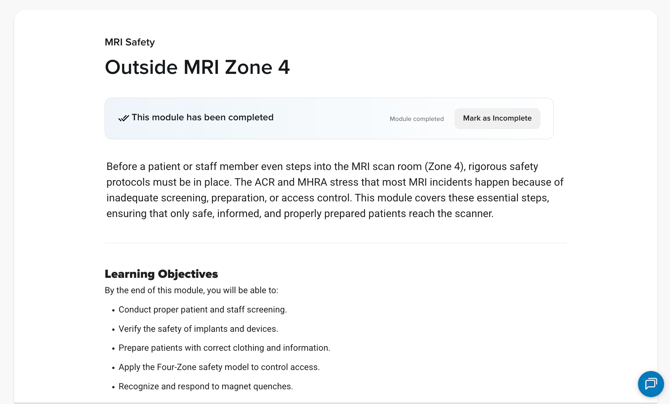
Clicked by accident? Don’t worry, undo it by clicking the button again to mark it as uncompleted.
Conclusion
You've learned how to complete and submit each assignment type in your programs.