![corsmed_no_clear_space_@16x-1.png]](https://help.corsmed.com/hs-fs/hubfs/corsmed_no_clear_space_@16x-1.png?height=40&name=corsmed_no_clear_space_@16x-1.png)
Open the image viewer
- In the Corsmed MRI Simulator, click Tools in the simulator header.
- Select Image Viewer from the dropdown menu.
- A new browser tab opens with the Image Viewer.
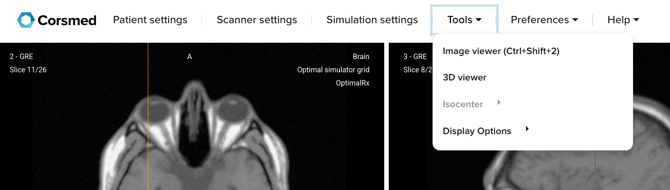
You can move freely between scanning in the simulator and analyzing images in the Image Viewer.
Understand the image viewer layout
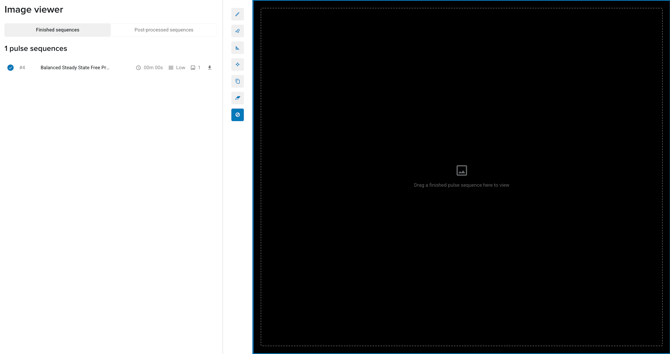
Image tabs
Use the tabs to find your MR images:- Finished sequences: images that are ready for post-processing and analysis.
- Post-processed sequences: images you have already worked on.
Work tools
Use the tools to annotate, mark Regions of Interest (ROIs) and analyze images:
- Free tool: draw freely on the image.
- Circle tool: mark circular areas of interest.
- Line tool: draw straight lines.
- Move tool: move your drawings anywhere on the image.
- Clone tool: duplicate a drawing.
- Erase tool: remove a drawing by clicking on it.
- No tool: stop drawing.
-
- This tool is selected by default when you open the Image Viewer.
Viewport
Use the viewport to display and analyze your selected pulse sequence images.
View an MR image
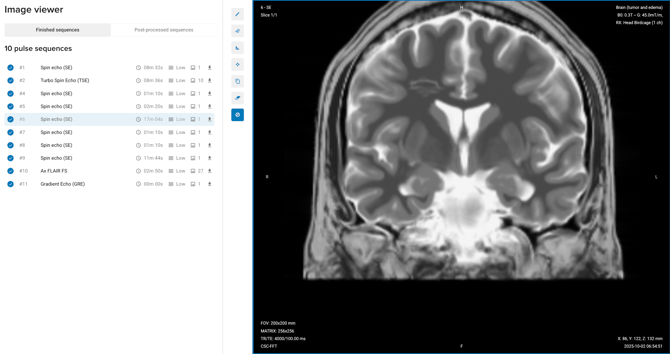
- Click on a pulse sequence from the list.
- The MR image appears in the viewport.
Post-processing and analysis
- Hover over the MR image to see tissue information in the top-right corner
- For example, white matter or grey matter
- Use the drawing tools to annotate or mark ROIs.
- The ROIs show average pixel intensity. These areas can be selected with the Free tool or Circle tool.
- Your drawings are automatically saved, so you can switch between pulse sequences without losing your work.
Conclusion
You've learned how to access the Image Viewer, navigate its tools, and analyze MR images using post-processing features.