![corsmed_no_clear_space_@16x-1.png]](https://help.corsmed.com/hs-fs/hubfs/corsmed_no_clear_space_@16x-1.png?height=40&name=corsmed_no_clear_space_@16x-1.png)
Before you start
The Isocenter tool is only available for the anatomical model called Male Body (segmented tissues, optional MI pathology).
Open the Isocenter
- Start the Corsmed MRI Simulator from the Dashboard or from a module.
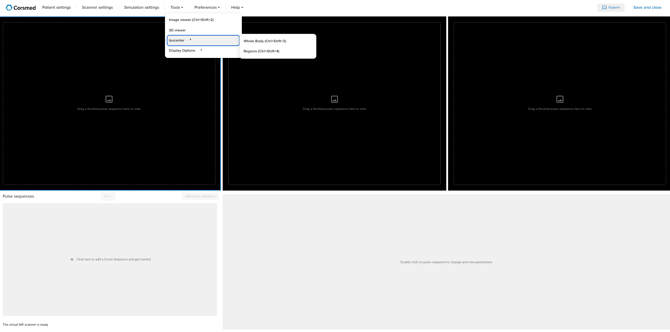
- In the simulator header, click Tools.
- Hover over Isocenter.
- Select one of the options:
- Whole body: allows you to choose specific areas
- Regions: allows you to choose specific body parts
This only sets which tab opens by default. You can switch between Whole body and Regions inside the Isocenter at any time.
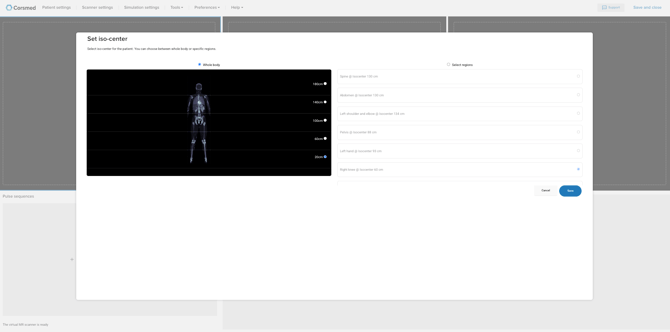
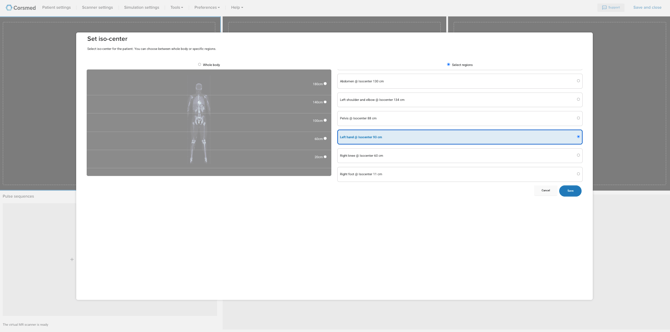
Choose your area of interest
- Select Whole body if you want to choose an area from the full-body view.
- Select Regions if you want to choose a specific body part.
- Click Save to apply your selection.
If no area or body part is explicitly selected before clicking Save, the default setting will be Feet.
Run the new scout images
- After saving, you will see three new scout images for the area you selected.
- If this is a new scan, click Run all in the Pulse Sequence List to run the scout images.
- If you have run scans before, the scout images will update automatically (there is no Run all button anymore).
- Drag the scout images into your viewports to review them.
Start scanning
- Add a pulse sequence.
- Begin scanning using your new scout images.
Conclusion
You’ve learned how to use the Isocenter in selecting a whole body area or specific region, and generate new scout images to start scanning.