![corsmed_no_clear_space_@16x-1.png]](https://help.corsmed.com/hs-fs/hubfs/corsmed_no_clear_space_@16x-1.png?height=40&name=corsmed_no_clear_space_@16x-1.png)
What is K-space?
K-space is the frequency domain representation of an MRI image, where the MR signal acquired during the scan is stored. Each point in k-space contains information about the entire image, with:
- Central k-space primarily determining image contrast and overall signal
- Peripheral k-space defining spatial resolution and edge detail
The final MRI image is created by applying a Fourier Transform to the fully sampled k-space data.
Understand the K-space tool
The K-Space Tool in the Corsmed MRI Simulator is designed to help you visualize and truly understand this abstract concept.
Unlike simplified demonstrations, Corsmed computes the actual MR signal evolution through time, pixel by pixel, for every pulse sequence you run. The k-space is then filled exactly as it would be on a real MRI scanner, fully governed by MRI physics. This makes the tool a powerful bridge between theory and real-world imaging behavior.
Access the K-space tool
-
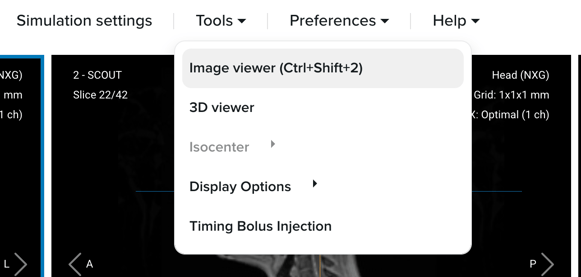
In the Corsmed MRI Simulator, click Tools in the header.
-
Select Image Viewer.
-
Drag the pulse sequence you want to analyze into the viewport.
-
Right-click on the image and select Open in K-Space.
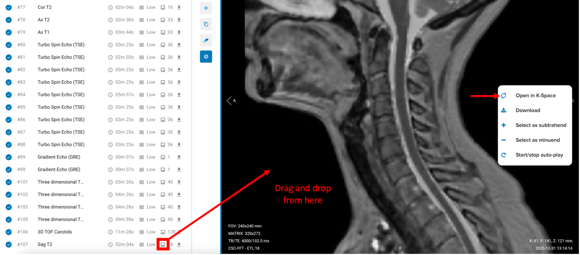
A new browser tab opens, displaying the k-space view for that acquisition.
What you will see
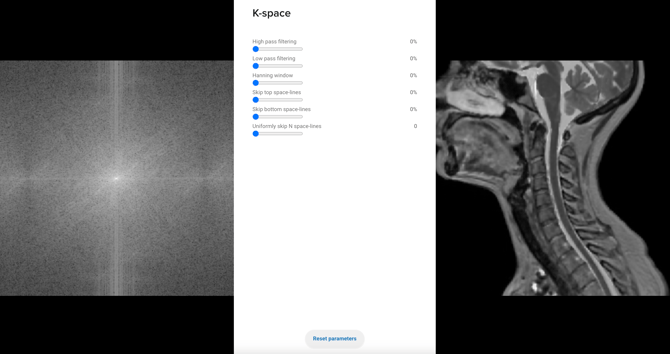
From left to right, the k-space view includes:
- Computed k-space of the acquisition
- Interactive filter sliders to explore how k-space data affects image formation
- Reconstructed image, generated from the filtered k-space data
The reconstructed image initially reflects the exact state of the image at the moment you selected “Open in K Space”.
Use the K-space filters
The filter controls allow you to selectively remove information from k-space and observe the impact in real time on the reconstructed image. This hands-on interaction helps build intuition around how k-space governs image contrast, signal strength, sharpness, and artifacts.
Guidelines
- Filters range from 0 to 100%
- Uniformly skip N space-lines accepts integer values
- Changes are applied instantly to the reconstructed image
Available filter types
High-pass filtering
Removes k-space information from the center toward the periphery.
- Demonstrates the importance of central k-space for signal and contrast
Low-pass filtering
Removes k-space information from the periphery toward the center.
- Highlights the role of outer k-space in spatial resolution and edge definition
Hanning window
Removes k-space lines uniformly from top to bottom.
- Illustrates smooth filtering effects and resolution trade-offs
Skip top space-lines
Removes k-space lines from the top edge down to the center.
- Helps visualize asymmetric information loss and reconstruction effects
Skip bottom space-lines
Removes k-space lines from the bottom edge up to the center.
- Useful for understanding directional data loss
Uniformly skip N space-lines
Removes k-space lines in a repeating pattern:
- N = 1: Keep one line, remove one line (50% reduction)
- N = 2: Keep one line, remove two lines
- N = 3: Keep one line, remove three lines
This filter is particularly effective for demonstrating undersampling effects, aliasing, and acceleration concepts.
Reset parameters
Returns all filters to their default state, restoring the full k-space data with no filtering applied.
Explore and learn
Each acquisition generates a unique k-space, shaped by the selected pulse sequence, geometry, and parameters. We encourage you to explore this tool across different sequences, contrasts, and parameter settings.
By experimenting freely, you will develop a strong, intuitive understanding of how k-space drives MRI image formation, and turn an abstract concept into a concrete, visual experience.
Conclusion
You've learned how to access and use the K-Space Tool to explore how MRI images are formed.