![corsmed_no_clear_space_@16x-1.png]](https://help.corsmed.com/hs-fs/hubfs/corsmed_no_clear_space_@16x-1.png?height=40&name=corsmed_no_clear_space_@16x-1.png)
Why subtraction matters in MRI
Image subtraction is a widely used technique in clinical MRI to highlight subtle signal changes between two otherwise similar acquisitions.
By subtracting one image from another, shared background signal is removed, allowing areas of true signal difference, such as contrast enhancement, perfusion changes, or vascular filling to stand out clearly.
In routine clinical practice, subtraction is especially valuable for:
- Detecting contrast enhancement in tumors or lesions
- Improving visualization of vascular structures
- Reducing background tissue signal that may obscure pathology
The Corsmed MRI Simulator brings this powerful post-processing technique into a safe, interactive learning environment, allowing you to understand both its workflow and its diagnostic value.
Use the subtraction tool
In the example below, we demonstrate subtraction using T1-weighted brain images with and without contrast in a patient with a tumor.
Step-by-step workflow
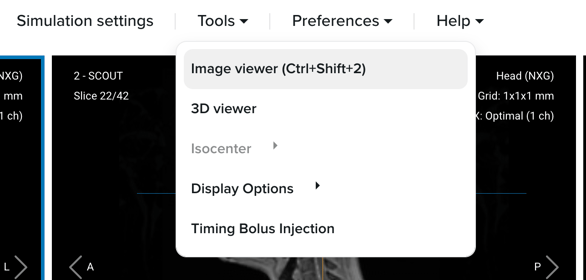
- Open the Tools menu and select Image Viewer.
- In the Pulse Sequences List, identify the two acquisitions you want to subtract.
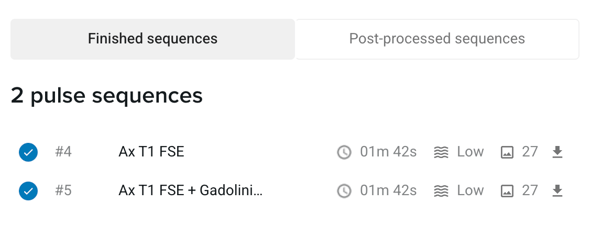
- In this example, Series #4 (“Ax T1 FSE”) corresponds to the brain image with a tumor acquired without contrast, while Series #5 (“Ax T2 FSE + Gadolinium”) represents the brain image with a tumor acquired after contrast administration.
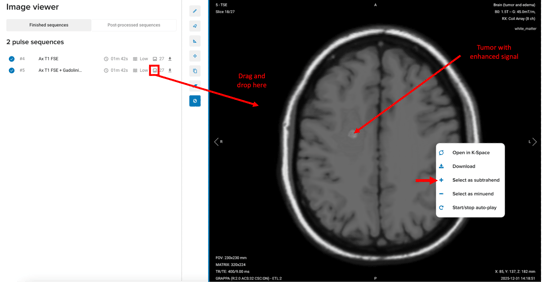
- Drag and drop the subtrahend sequence into the viewport.
- Right-click on the image and select Select as subtrahend.
- In this example: the T1-weighted brain image with contrast.
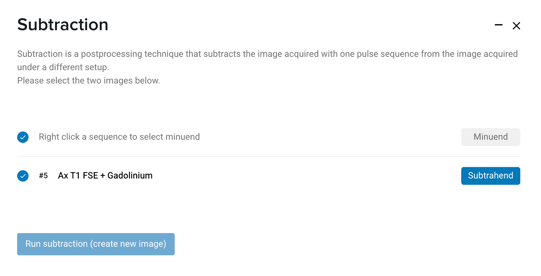
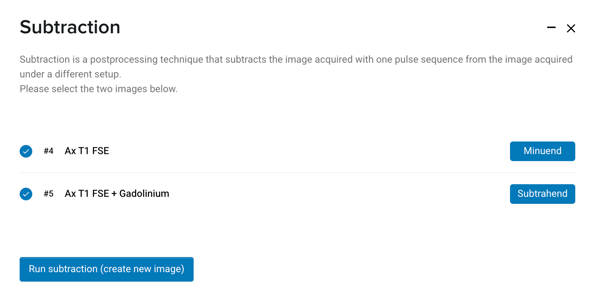
- A Subtraction pop-up window will appear, confirming the selected subtrahend image.
- You may minimize this window while preparing the second image.
- You may minimize this window while preparing the second image.
- Drag and drop the minuend sequence into the viewport.
- Right-click and select Select as minuend.
- In this example: the T1-weighted brain image without contrast.
- For accurate subtraction, both images should have the same slice position and orientation.
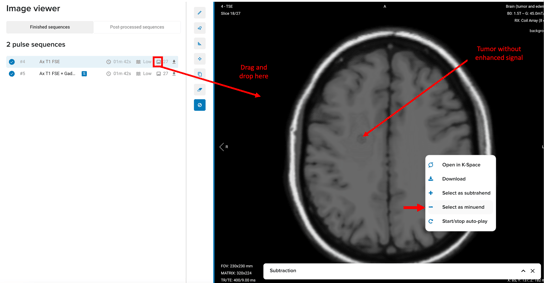
- Right-click and select Select as minuend.
- In the Pulse Sequences List, you will see:
- “S” next to the subtrahend
- “M” next to the minuend
These indicators confirm the selected roles for subtraction.
- Reopen the Subtraction pop-up and click Run subtraction (create new image).
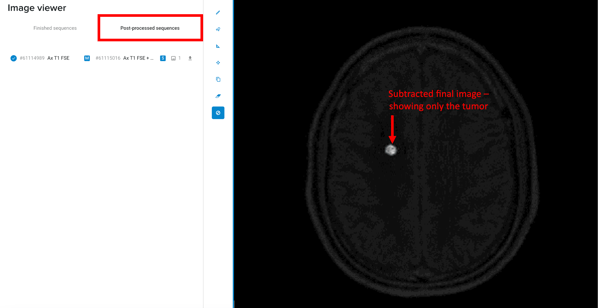
- The subtracted image is computed and automatically placed in the Post-processed sequences tab.
Understand the result
In this example, the subtraction image primarily displays the enhancing tumor, since the only meaningful signal difference between the pre- and post-contrast images is the contrast uptake within the lesion.
This makes pathology more conspicuous, improves confidence in interpretation, and closely reflects how subtraction is used in real clinical workflows.
Learn by experimentation
Each subtraction result depends on:
- Sequence contrast
- Parameter selection
- Image alignment
- Presence or absence of contrast enhancement
We encourage you to experiment with different sequences and scenarios to fully appreciate the diagnostic power of subtraction imaging. By doing so, you’ll gain practical insight into a technique that plays a key role in modern MRI interpretation.
Conclusion
You've learned how to use the Subtraction Tool to create a post-processed subtraction image and highlight true signal differences between two MRI acquisitions.